


Set up a Client Portal with Invoicing in WordPress
For freelancers and small agencies, client communication often spans multiple channels, including email threads, shared drives, chat apps, and payment platforms. A simple client portal on your WordPress site can bring all that activity under one roof, saving time and creating a more polished experience for your clients.
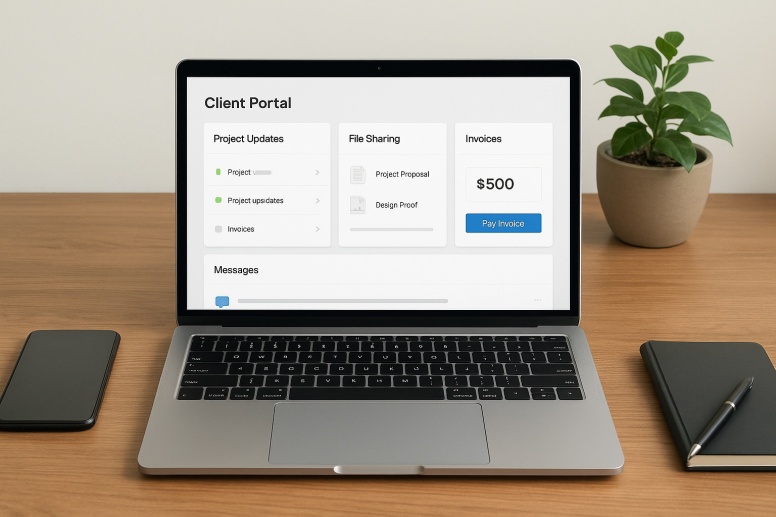
A well-designed portal doesn’t have to be complex or expensive. With the right plugins and a little setup, you can create a secure space for clients to log in, view project updates, download files, and pay invoices, all without writing custom code.
Choose the Right Membership Framework
The backbone of your portal will be a membership or user management plugin. These tools control who can access what content on your site. Look for plugins that handle user roles and permissions intuitively.
A few solid options include:
- MemberPress: Reliable and beginner-friendly, great for managing different client tiers.
- Paid Memberships Pro: Offers flexible pricing structures and integrates with many payment gateways.
- WP-Members: A free, lightweight option that adds login and registration forms directly to your pages.
Once you’ve installed your chosen plugin, set up a “Client Portal” page and restrict it to logged-in users only. This is where your clients will land after logging in, so it’s worth keeping the layout simple and easy to navigate.
Build Out Client Areas and File Sharing
Every client needs access to different documents, invoices, and updates. You can create individual pages or folders for each client and manage permissions through your membership plugin.
For secure file sharing, consider these plugins:
- WP Customer Area: Allows you to create private pages and file repositories for each client.
- FileBird: Helps you organize and share files neatly within the WordPress media library.
- Secure File Manager: Provides an interface for uploading and downloading files directly from the dashboard.
With this setup, clients can log in and instantly find what they need, whether that’s a contract, design proof, or project update, without having to email back and forth.
Add Billing and Payment Features
A truly functional client portal should also make invoicing simple. You can integrate billing directly using plugins like:
- WP Simple Pay: Great for quick Stripe payments.
- Sprout Invoices: Full-featured invoicing with recurring billing and status tracking.
- Gravity Forms + Payment Add-ons: For those who prefer to build forms from scratch with flexible payment options.
As you design your invoice layout, aim for something clean and branded. A simple, consistent look reinforces your professionalism. If you don’t want to start from scratch, you can use Joist’s invoice templates as a quick-start resource to generate polished, client-ready PDFs that match your branding.
These templates can be customized and uploaded into your portal so that each client sees their invoices neatly organized. Most invoicing plugins let you automatically attach PDFs to payment confirmation emails as well, a small touch that helps you look more organized.
Enable Notifications and Status Updates
Clients appreciate transparency, especially when they don’t have to ask for it. You can use built-in plugin notifications or third-party automation tools like WP Fusion or Uncanny Automator to send updates automatically when milestones are reached or files are added.
Consider setting up:
- Automatic status updates when a project moves stages (e.g., “In Progress” → “Ready for Review”)
- Email notifications when a new invoice is posted or a file is available
- Dashboard summaries showing recent activity, outstanding invoices, and due dates
This kind of automation not only saves you time but also reassures clients that their projects are moving forward without manual check-ins.
Test the Client Experience

Before inviting clients to use the portal, test it as if you were a customer. Create a dummy account and walk through the full journey, from logging in and downloading a file to viewing invoices and making a payment.
During your test, check for:
- Clarity
- Security
- Performance
Once you’re confident in the experience, invite one trusted client to test it in real conditions. Ask for feedback and make small improvements before rolling it out to everyone.
Keep It Lightweight and Maintainable
One of the biggest advantages of WordPress is its flexibility, but that also means it’s easy to overcomplicate things. Stick with a minimal set of plugins that do their jobs well and are actively maintained. Schedule regular updates and backups to ensure everything keeps running smoothly.
To keep things fast and reliable:
- Limit unnecessary dashboard widgets and scripts
- Use caching and image optimization plugins like WP Rocket or Smush
- Back up your portal regularly using UpdraftPlus or Jetpack VaultPress
Creating a client portal in WordPress doesn’t require a developer or a heavy SaaS subscription. With a handful of well-chosen plugins, you can deliver a professional experience that keeps communication, files, and billing all in one place.
It’s an investment that pays off quickly, not just in saved time, but in how polished and trustworthy your business appears to every client who logs in.






0.176