


10 Free PDF Editor Reviews for Features & Limits
A PDF file is like a digital piece of paper. It holds its shape—fonts, margins, images—whether you open it on a phone, a laptop, or a print shop. That reliability makes it the standard for contracts, tax forms, manuals, and reports.
But sometimes you need to change that digital paper. You need to sign a lease, fix a typo in a resume, merge two scanned receipts, or leave feedback on a draft. That is where a PDF editor becomes essential.
Paid editors like Adobe Acrobat Pro offer every feature imaginable. But most people do not need every feature. They need one task done well, for free. The good news: many excellent PDF editors are genuinely free. The confusing news: “free” means different things. Some are unlimited. Some give you three tasks per day. Some run only in a browser; some live on your desktop.
This guide consolidates the best free PDF editors available today. Each tool has been tested against real-world tasks: filling forms, signing documents, merging files, annotating drafts, and editing text. You will see exactly what each tool does well, where it falls short, and which tool is actually the right fit for your specific job.
No single editor is the best at everything. But with the right combination, you never need to pay for PDF software.
A Quick Comparison
| Tool | Best For | Key Feature | Pricing Model | Platform |
|---|---|---|---|---|
| Adobe Acrobat Reader DC | Viewing, filling forms, and annotating | Industry-standard comment tools | Free forever (core features) | Desktop (Win/Mac) |
| Sejda PDF Editor | Balanced all-purpose editing | Best-in-class free text editing | 3 tasks/day, 50MB/200pg limit | Online, Desktop |
| PDFescape | Browser-based editing + forms | Add form fields to any PDF | Free under 10MB/100pg | Online, Desktop (Win) |
| PDFsam Visual | Merging and splitting pages | Precise drag-drop page control | 100% free, no limits | Desktop (Win/Mac/Linux) |
| LibreOffice Draw | Heavy editing, no limits | Full object-level editing | 100% free, open source | Desktop (Win/Mac/Linux) |
| Xodo | Annotation across devices | Fluid touch + stylus markup | Free (core), cloud features are paid | Web, Win, Android, iOS |
| iLovePDF | Single-task utilities | PDF-to-Word conversion | Severely limited free tier | Online |
| FormSwift | Form templates and filling | 1000+ legal/business templates | Free account required | Online |
| Smallpdf | Polished, simple interface | Excellent compression | 2 tasks/day, 5MB limit | Online |
| Google Drive Preview | Quick Drive-native annotation | No upload needed | Free with a Google account | Online |
The List: 10 Free PDF Editors Reviewed
1. Adobe Acrobat Reader DC
What it does:
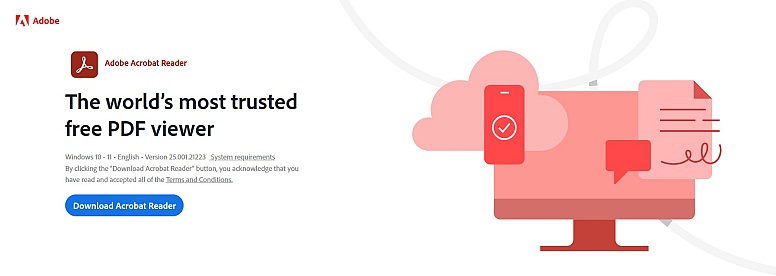
Opens, displays, prints, and annotates PDFs. It is the universal viewer that sets the standard for how a PDF should look.
Who it’s best suited for:
Anyone who needs to reliably view, fill out forms, or add professional comments to a PDF. It is the default choice in office, legal, and academic settings.
Strengths:
- Renders every PDF exactly as intended—no layout surprises
- Fills interactive forms flawlessly; the most reliable tool for government and tax documents
- Comprehensive annotation tools: sticky notes, highlights, strikethrough, drawing markup
- “Fill & Sign” tool supports typed text and drawn/typed/image signatures
- Frequent security updates; safe for opening untrusted documents
Limitations:
- Cannot edit existing text or images—no typo fixes, no logo replacement
- Cannot merge, split, or reorder pages
- Cannot convert PDFs to Word or Excel
- Free version includes prompts to upgrade to Acrobat Pro
Notable detail:
Comments and markup added in Reader appear correctly in any professional PDF tool. It is the only free viewer that guarantees full compatibility when collaborating with users of paid Adobe software.
2. Sejda PDF Editor
What it does:
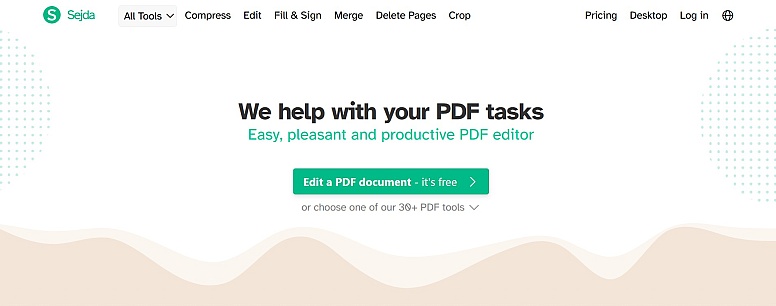
A balanced, all-purpose PDF editor that handles text editing, annotations, merging, splitting, OCR, and form filling in one clean interface.
Who it’s best suited for:
Individuals who perform a variety of editing tasks several times a day and work with documents under 50MB and 200 pages.
Strengths:
- One of the few free tools that can actually edit existing text in non-scanned PDFs; preserves font and layout reasonably well
- Includes OCR for scanned documents—makes images of text searchable and weakly editable
- Clean, intuitive interface with tasks organized logically
- Available both online and as a desktop app (Win/Mac/Linux)
- Handles annotations, watermarks, page numbers, and signatures smoothly
Limitations:
- Strict daily limit: 3 tasks per day (a “task” = editing one file OR merging five files into one)
- Online version: 50MB file size cap, 200 page limit
- No batch processing in the free tier
- OCR output in the free version is watermarked on multi-page documents
Notable detail:
Sejda’s “Edit Text” tool is the closest you will get to a free version of Adobe Acrobat Pro’s text editor. For minor corrections on text-based PDFs, it is the best option—until you hit your three-task limit.
3. PDFescape
What it does:
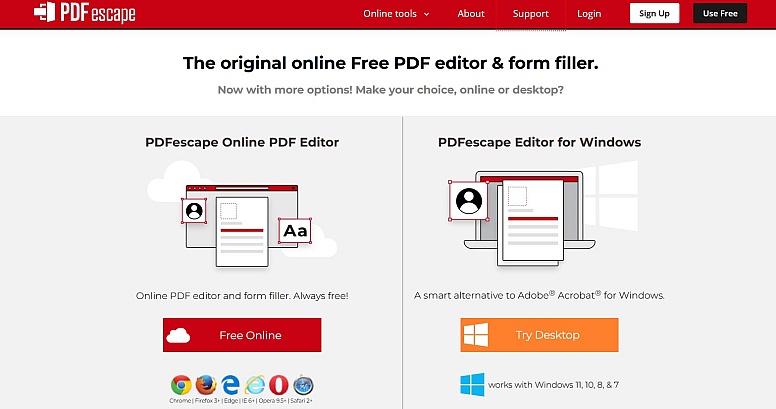
A browser-based PDF editor with surprising depth, including form creation and basic image editing.
Who it’s best suited for:
Users who need to edit or fill PDFs directly in a browser without installing software, and who work with documents under 10MB and 100 pages.
Strengths:
- Full online editing: add, edit, and format text; insert images and shapes; annotate
- Rare free feature: can add interactive form fields (text boxes, checkboxes) to existing PDFs
- Dedicated “Typewriter” tool for filling non-interactive forms neatly—text stays where you put it
- Page management: insert, delete, reorder, rotate
- Also available as a downloadable Windows desktop app
Limitations:
- Online version: 10MB file size limit, 100 page limit
- Advanced features (form editing) require a free account
- Interface feels dated and slightly cluttered
- Text editing on complex PDFs can be clunky, not as smooth as Sejda
Notable detail:
If you receive a scanned form that isn’t fillable, PDFescape’s Typewriter tool is often better than Adobe Reader’s “Add Text” because it places text in a fixed position rather than a floating box. This keeps your typed answers aligned with the form lines.
4. PDFsam (Visual Edition)
What it does:
One job, exceptionally well: manipulating pages within and across PDFs. It merges, splits, rotates, and extracts pages.
Who it’s best suited for:
Anyone who regularly needs to combine chapters into a report, split large scans into separate files, or reorganize multi-page PDFs.
Strengths:
- Precise drag-and-drop interface for merging files in any order
- Flexible splitting: by page ranges, every N pages, odd/even, or bookmarks
- Rotate, extract, and mix pages from multiple documents
- Completely free: no watermarks, no task limits, no file size caps, no paid upgrade
- Open-source, lightweight, fast
Limitations:
- Cannot edit text, images, or annotations at all
- Cannot fill forms or add signatures
- Interface is functional but unpolished
Notable detail:
PDFsam does not try to be an editor. It is a specialised utility. Experienced users keep it installed alongside a general-purpose editor like Adobe Reader because it handles page operations that Reader cannot.
5. LibreOffice Draw
What it does:
A vector graphics program that is part of the free, open-source LibreOffice suite. It can open any PDF and treat it as a collection of editable objects.
Who it’s best suited for:
Technically inclined users who need to make substantial edits to PDF content, have no budget, and are willing to learn a non-standard interface.
Strengths:
- Can edit virtually anything in a PDF: text blocks, vector shapes, images, lines
- No restrictions whatsoever: no daily limits, no watermarks, no file size caps
- Add new text frames, images, and shapes with full formatting control
- Completely free and open-source; no data leaves your computer
- Integrates with LibreOffice Writer and Calc for conversion workflows
Limitations:
- Steep learning curve; interface is designed for illustration, not PDF editing
- Complex layouts often break upon import—text reflows, objects separate, spacing shifts
- Not suitable for annotations or form filling; commenting tools are basic
- Opening a PDF takes 10–30 seconds; not a quick-edit tool
Notable detail:
LibreOffice Draw is the only truly unlimited free editor for people who need to change the actual content of a PDF—rewriting paragraphs, swapping diagrams, redesigning pages. It is not convenient, but it is powerful.
6. Xodo PDF Reader & Editor
What it does:
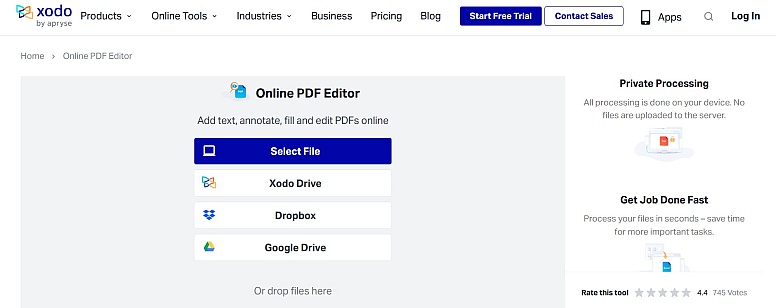
A cross-platform PDF tool that started as a mobile app and now offers web, Windows, Android, and iOS versions. It emphasizes a fluid, touch-friendly annotation experience.
Who it’s best suited for:
Students, professionals, and tablet users who primarily need to mark up, highlight, sign, and review PDFs across multiple devices.
Strengths:
- Outstanding annotation tools: highlight, underline, strikeout, freehand drawing—fast and smooth, especially on touchscreens
- Excellent signing workflow: draw, type, or upload signature; place and resize easily
- True cross-platform sync: start reviewing on desktop, continue on phone; annotations persist
- Basic editing: add text boxes, insert images, merge files
- Clean, modern interface
Limitations:
- Cannot edit existing text—only add new text on top
- Web and desktop versions are slightly less feature-rich than mobile apps
- Advanced form-filling and cloud sync features may require a subscription
Notable detail:
Xodo is the preferred free tool for reviewing architectural drawings, academic papers, and design proofs on a tablet. Its stylus support and palm rejection are noticeably better than Adobe Reader’s mobile app.
7. iLovePDF
What it does:
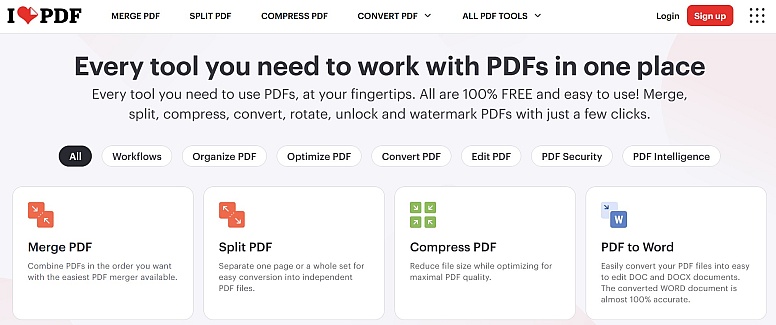
A collection of over twenty single-purpose online tools for specific PDF tasks: merge, split, compress, convert to/from Word/Excel, add watermarks, and basic OCR.
Who it’s best suited for:
Users who need a quick, one-off job done—compress a PDF to email it, convert a simple document to Word—and do not need an integrated editing workspace.
Strengths:
- Each tool is minimalist: drag, drop, process, download
- PDF-to-Word converter preserves formatting better than many competitors
- Good compression algorithm; significantly reduces file size with minimal quality loss
- Free account unlocks slightly higher limits
Limitations:
- No unified editor: you cannot open a PDF and perform multiple actions in one session
- Strict free limits: typically 1 task per hour, 15MB file size cap
- Every action is a separate upload/process/download cycle
- Privacy concerns: files are uploaded to third-party servers
Notable detail:
iLovePDF is not a tool you work in. It is a tool you visit for 90 seconds. For that use case—compress and send—it is excellent. For anything involving multiple steps, choose something else.
8. FormSwift
What it does:
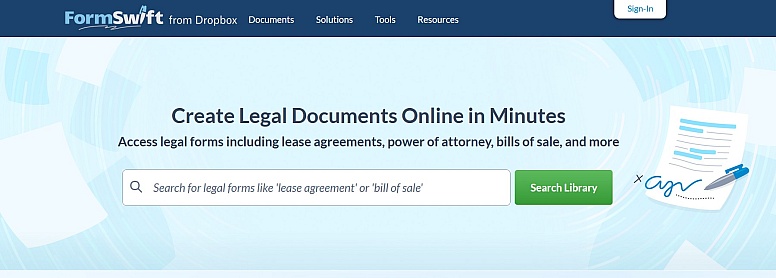
A specialised online platform for finding, filling, and creating PDF forms. It offers a large library of legal, tax, and business form templates.
Who it’s best suited for:
Someone who needs a specific standard form—a 1099, a rental agreement, an invoice—and wants to fill it out in a clean, guided interface without searching official sources.
Strengths:
- Thousands of free, professionally designed PDF templates
- Step-by-step form-filling interface; clearer than generic PDF editors
- Can convert any uploaded PDF into a fillable form by adding fields
- Saves completed forms to your account
Limitations:
- A free account is required for nearly all functionality
- Very limited as a general PDF editor; cannot edit arbitrary PDF content
- Prominently promotes paid subscriptions; free tier feels like a trial
- The template library includes many documents that are freely available elsewhere
Notable detail:
FormSwift is useful if you need a specific legal form right now and do not want to navigate government websites. It is not a tool for editing your own PDFs.
9. Smallpdf
What it does:
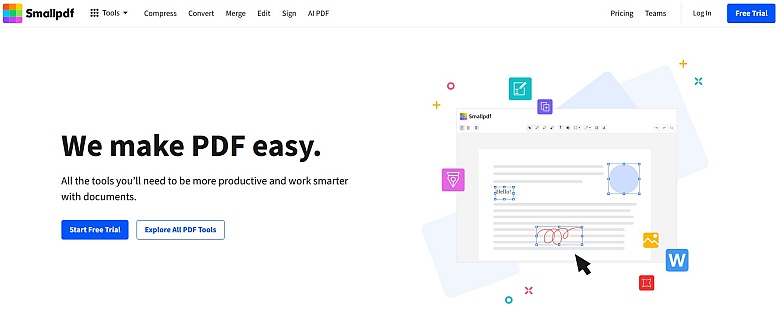
A polished, user-friendly online platform for common PDF tasks: compress, convert, merge, split, edit, and sign.
Who it’s best suited for:
Casual users who perform one or two simple PDF tasks per day and prioritise a smooth, intuitive interface over power features.
Strengths:
- Exceptionally clean, modern design; tools are clearly labeled and visually guided
- Core tasks work reliably: compress, convert, merge, add text/images/signatures
- The compression tool is genuinely effective—it often reduces file size by 50%+ with minimal visible degradation
- Integrates with Google Drive and Dropbox; open files directly from cloud storage
Limitations:
- Very restrictive free plan: only 2 tasks per day
- 5MB file size limit on the free tier, which is unusually low
- Lacks advanced editing features; designed for simplicity, not depth
- Heavy upsell to the Pro version throughout the experience
Notable detail:
Smallpdf’s interface is so pleasant that casual users often hit their two-task limit and wish they had more. If you only touch PDFs occasionally, it is worth keeping bookmarked for those two tasks.
10. Google Drive (with Chrome PDF Previewer)
What it does:
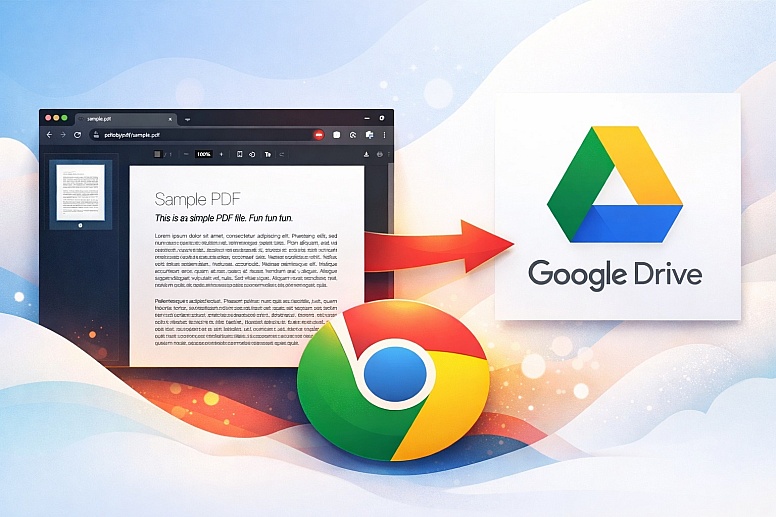
A lightweight annotation layer built into Google Drive’s built-in PDF viewer. It is not a standalone editor; it is a convenience feature for files already stored in Drive.
Who it’s best suited for:
Students, colleagues, or teams already using Google Drive for collaboration who need to quickly highlight and comment on a shared PDF for discussion.
Strengths:
- No additional software or uploads needed; if the PDF is in Drive, you can mark it up instantly
- Basic annotation: highlight text, add text comments anchored to specific passages
- Freehand drawing tool and simple stamps (checkmark, X, exclamation)
- Comments can be threaded; useful for team feedback
Limitations:
- Extremely limited feature set: no text addition, no signing, no page editing, no merging
- Annotations are not “burned in”—they exist as a separate layer visible only within Google Drive’s preview
- Downloaded PDFs often do not display annotations correctly in other viewers
- Entirely dependent on the Google ecosystem
Notable detail:
This is not a tool for producing a final, edited PDF. It is a tool for discussing a PDF. Use it when the goal is feedback, not finished output.
How to Choose the Right Free PDF Editor
There is no single “best” free PDF editor. The right tool depends entirely on what you are trying to accomplish. Choosing incorrectly is the most common source of frustration.
Below are the five most frequent PDF tasks, the specific constraints of each, and which tool(s) actually solve them:
Filling Out a Form
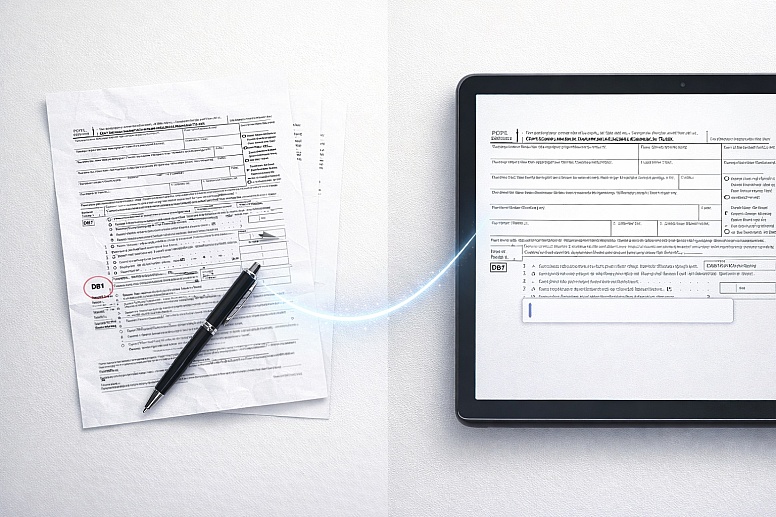
You download a tax form, job application, or permission slip. You need to type information into the blanks.
The constraint:
If the PDF is a fillable form—created with interactive form fields—any half-decent reader will work. If the PDF is a scanned image of a paper form, you cannot type directly into it. You need either OCR to add fields or a “Typewriter” tool that places text in a fixed position.
Common mistake:
Using the standard “Add Text” tool on a non-fillable form. This creates a floating text box that shifts when clicked elsewhere. Your text ends up misaligned, and the document looks sloppy.
Recommended strategy:
- For genuine fillable forms: Adobe Acrobat Reader DC. It is the most reliable.
- For non-fillable forms: PDFescape (Typewriter tool) or Sejda (Text tool with precise positioning).
Signing a Document
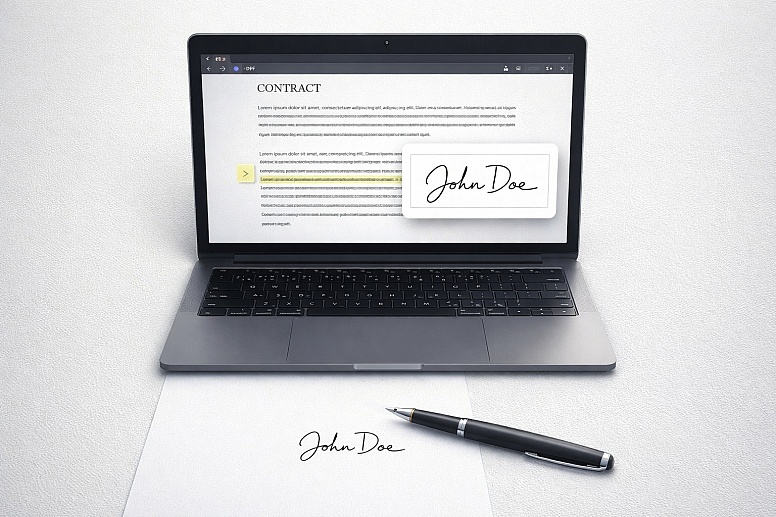
You receive a contract or agreement. You need to add your signature and date.
The constraint:
You need a clean, reusable digital signature that looks authentic and can be placed accurately.
Common mistake:
Printing the document, signing it by hand, scanning it back in, and emailing it. This wastes time, consumes ink, and produces a low-resolution, large-file result.
Recommended strategy:
- Xodo and Adobe Reader both have dedicated “Sign” tools that let you draw, type, or upload an image of your signature.
- For the cleanest result: create a high-resolution PNG of your signature on a white background, save it, and insert it as an image in Sejda or PDFescape.
Merging or Splitting Documents
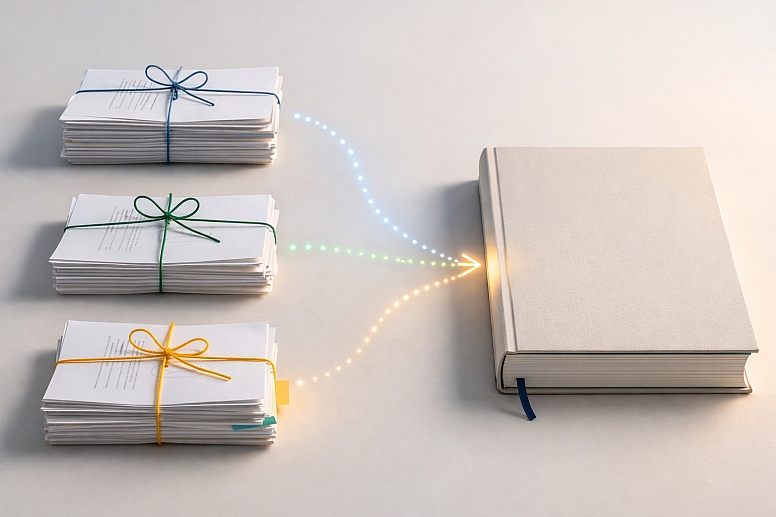
You have several PDFs—chapter files, scanned receipts, email attachments—that need to become one file. Or you have one large PDF and need to email only a few pages.
The constraint:
Page order must be controllable. When splitting, you need precise ranges and sensible filenames.
Common mistake:
Merging in the wrong order and restarting. Splitting into dozens of single-page files named “output1.pdf, output2.pdf” with no context.
Recommended strategy:
- PDFsam Visual Edition. It is purpose-built for this, completely free, and shows page thumbnails so you can drag and drop to reorder. No limits, no watermarks.
Annotating and Reviewing
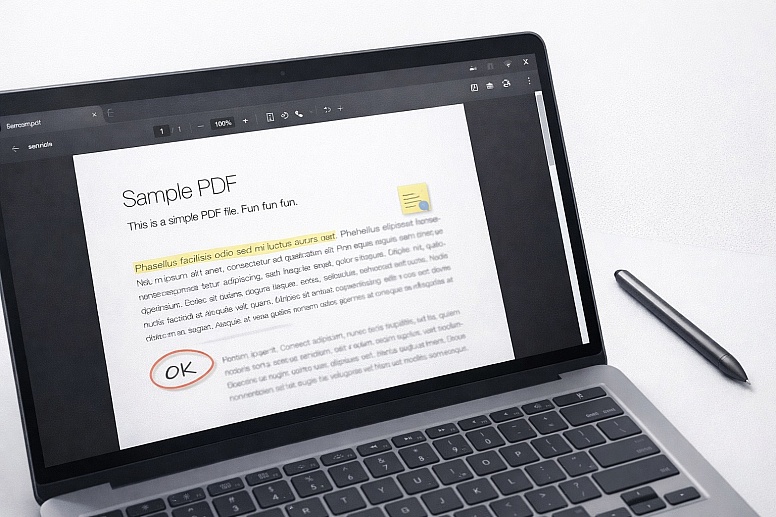
You are reviewing a report, a student’s thesis, or a design draft. You need to add comments, highlight passages, and suggest changes without altering the original text.
The constraint:
Comments must be clear, anchored to specific text, and readable by the recipient without special software.
Common mistake:
Using highlight alone with no explanation. Placing comment boxes randomly in margins makes it unclear which text they refer to.
Recommended strategy:
- Adobe Acrobat Reader DC. Its comment and markup tools are the industry standard. Annotations added in Reader appear correctly in any professional PDF tool.
- For tablet users: Xodo offers a superior freehand annotation experience, especially with a stylus.
Making Minor Edits to Text and Images
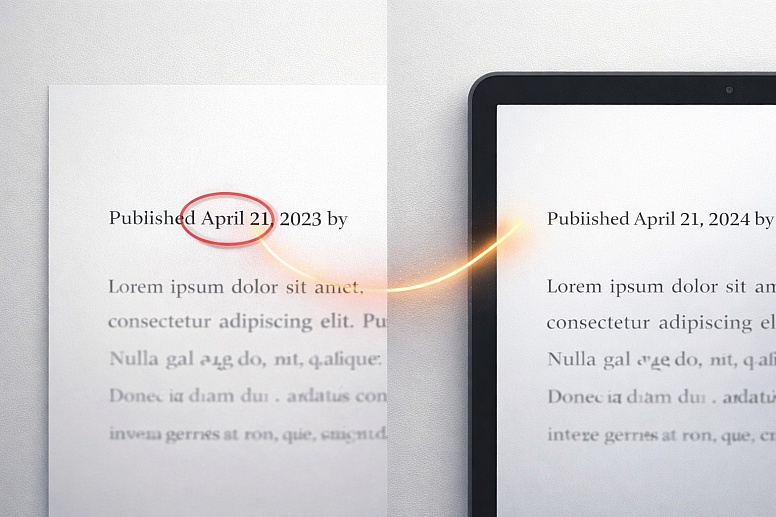
You have a PDF where a date is wrong, a logo is outdated, or a paragraph needs to be removed.
The constraint:
This is where free tools show their limits. If the PDF was created from a Word document, you might be able to edit text cleanly. If it is a scan, you cannot edit text at all without OCR. Most free editors cannot replace images; they can only overlay new ones.
Common mistake:
Trying to edit a scanned PDF as if it were a text document. Using an “eraser” tool to white out text, leaving a visible, uneven rectangle.
Recommended strategy:
- For text-based PDFs: Sejda. Its Edit Text tool is the best free option for minor corrections.
- For image replacement: PDFescape or LibreOffice Draw. Delete the old image, insert the new one, and resize.
- For scanned documents: You need OCR first. Use Sejda (online, limited) or iLovePDF (basic OCR) to convert the scan to editable text, then edit.
Match the Tool to the Task
| If you need to... | Use this tool first |
|---|---|
| Fill out a government form | Adobe Acrobat Reader DC |
| Sign a contract | Xodo or Adobe Reader |
| Merge 10 PDFs into one | PDFsam |
| Review a colleague’s draft | Adobe Reader (desktop) or Xodo (tablet) |
| Fix a typo in a text PDF | Sejda |
| Edit a scanned document | Sejda (OCR) + Sejda (text edit) |
| Avoid uploading private files | PDFsam, LibreOffice, or Adobe Reader |
| Do one quick compress-and-send | iLovePDF or Smallpdf |
How This List Is Maintained
This list is curated, not exhaustive. Inclusion requires three things:
- The tool must be genuinely free. Freemium tools are included if their free tier is genuinely useful for a significant number of users. Tools that add watermarks or require payment after a 7-day trial are not included.
- The tool must be reliable. It should perform its stated function without crashing, corrupting files, or producing unusable output.
- The tool must be widely available. Obscure, unmaintained, or platform-locked utilities are excluded.
Pricing models change. Features are added and removed. This list is reviewed periodically, and tools that degrade their free offerings may be replaced.
If you develop or represent a free PDF editor that meets these criteria, contact us. Tools that demonstrate consistent quality and genuine free access will be considered for future updates.
What Experienced Users Look For
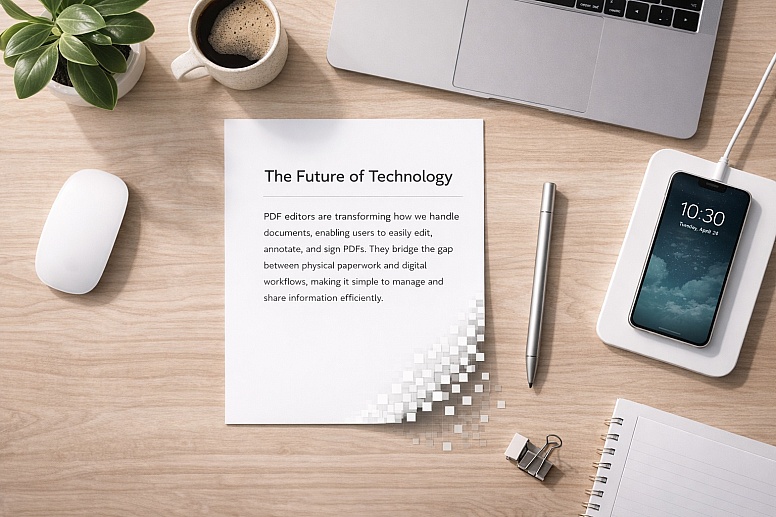
Beyond the basic buttons, experienced PDF users evaluate tools on criteria that never appear in a feature list.
Preservation of embedded data.
A PDF can contain more than visible text and images. It may have embedded fonts, multiple layers (common in CAD and design files), and metadata (author, creation date, keywords). Some free editors strip this data out to simplify the file. If you work with technical or professionally produced PDFs, test the editor on a sample before trusting it with critical documents.
Print production quality.
If a PDF is destined for commercial printing, it must meet specific standards: CMYK colour space (not RGB), all fonts embedded, bleed margins, and registration marks. No free editor can reliably create or preserve these print-ready conditions. That work belongs in Adobe InDesign, Illustrator, or Acrobat Pro.
Accessibility tagging.
A properly tagged PDF contains structural information—headings, reading order, and alt text for images—that screen readers use to assist visually impaired users. Editing or creating these tags is complex, and no free tool offers meaningful accessibility tag editing. This is a critical limitation for government agencies, universities, and any organisation subject to accessibility laws.
The redaction trap.
Redaction is the permanent removal of sensitive information. A proper redaction tool does not just draw a black rectangle over text; it deletes the underlying text data from the file. Some free editors claim to offer redaction, but only overlay a black box. The original text remains in the file and can be copied out by anyone with basic PDF knowledge. For genuine redaction, use a trusted professional tool.
Batch processing.
If you need to apply the same action—add a watermark, password-protect, compress to 50 or 100 files, doing them one by one is not feasible. Free tools seldom include batch processing. This is a premium feature. For bulk operations, experienced users either pay for software or use command-line tools likeqpdforGhostscript.
How Free PDF Editors Differ: What “Free” Actually Means
“Free” is not a single category. Every tool on this list is free to use, but the conditions of that freedom vary significantly. Understanding these differences prevents frustration.
1. 100% Free, No Strings Attached
These tools are completely free. No limits, no watermarks, no accounts, no paid upgrades. They are often open-source.
Examples: PDFsam, LibreOffice Draw
2. Freemium with Daily/Weekly Limits
You get full access to features, but your usage is capped. Once you hit the limit—usually measured in “tasks” per day—you must wait or upgrade.
Examples: Sejda (3 tasks/day), Smallpdf (2 tasks/day)
3. Free for Core Features, Paid for Advanced
The base software is free forever and genuinely useful. Advanced features—text editing, OCR, batch processing, form creation—are locked behind a subscription.
Examples: Adobe Acrobat Reader DC, Xodo (some cloud features)
4. Free with Size/Page Limits
You can use the tool without paying, but your document must be under a certain file size or page count.
Examples: PDFescape (10MB/100pg), Sejda online (50MB/200pg)
5. Free Within an Ecosystem
The tool is included at no cost as part of a larger service you already use.
Example: Google Drive PDF previewer
The Privacy Distinction
This is the most important practical consideration:
Online editors (Sejda, PDFescape, iLovePDF, Smallpdf, FormSwift, Google Drive) require you to upload your file to a third-party server. For public documents, flyers, or non-sensitive material, this is acceptable. For documents containing personal identification numbers, financial details, health records, legal contracts, or trade secrets, uploading is a security risk. You have no control over how the file is stored, who can access it, or whether it is retained after processing.
Desktop editors (Adobe Reader, PDFsam, LibreOffice Draw, Xodo desktop, Sejda desktop) process files on your own machine. Your files never leave your computer. This is inherently more private and secure.
Rule of thumb: If you would not post it on a public website, do not upload it to an online PDF editor.
Frequently Asked Questions
Is it safe to use a free online PDF editor?
It depends on the document. For non-confidential files, reputable online tools are generally safe. For documents containing personal, financial, or proprietary information, use a desktop editor that keeps files on your own computer.
Can I edit a PDF that was scanned from paper?
Not directly. A scanned PDF is a picture of text. You must first run Optical Character Recognition (OCR) to convert the picture into actual editable text. Sejda and iLovePDF offer basic OCR in their free tiers, but accuracy varies, and free versions often have limits or watermarks.
Why does text jump around when I try to edit it?
Because the PDF’s text is not a continuous flow like a Word document. Each line, word, or even individual character may be in its own separate text box. When you edit one, it does not push the rest of the paragraph along. For documents with this structure, it is often easier to add a new text box over the old text rather than trying to edit the source.
What is the best free PDF editor with no limits at all?
If you need no limits and no watermarks, your options are PDFsam (page management only) and LibreOffice Draw (full editing, but a steep learning curve). There is no unlimited, easy-to-use, all-purpose free PDF editor. That trade-off is how the freemium model works.
Do I need to install software, or is online better?
Neither is universally better. Install desktop software if you work with PDFs regularly, handle private documents, or need to process large files. Use online tools for quick, one-off tasks on computers where you cannot install software.
Are these PDF editors really free, or do they add watermarks?
All tools listed here are genuinely free and do not add watermarks in their free tiers, provided you stay within their limits. Some freemium tools (not on this list) do add watermarks. If you exceed Sejda’s daily limit, it simply stops you—it does not watermark your file.
What is OCR, and do I need it?
OCR (Optical Character Recognition) converts an image of text—like a scanned paper document—into machine-readable text. You need OCR if you want to search, copy, or edit text in a document that originated as a physical piece of paper.
How do I redact text permanently in a free PDF editor?
Carefully. Most free editors claiming to offer redaction actually only draw black boxes over text. The original text remains hidden in the file. For true redaction—permanent deletion of the underlying text—you need a professional tool. If you must redact sensitive information using free software, print the document, black out the text with a marker, and scan it as a new PDF. This is crude but effective.
No single free PDF editor does everything. The search for one perfect, unlimited, easy-to-use tool that edits text, fills forms, merges chapters, and scans OCR—all for free—will end in disappointment.
A better approach: build a toolkit.
Keep Adobe Acrobat Reader DC installed for viewing, filling, and commenting. Keep PDFsam bookmarked (or installed) for page operations. Use Sejda for the occasional text edit, and iLovePDF or Smallpdf for quick one-off conversions. This combination of specialised free tools will handle 95% of what ordinary users need to do with PDFs—without ever opening a wallet.
If you have a tool you believe belongs in this list, or if you represent a service that meets the criteria described in the maintenance section, you are welcome to suggest it for future review.
LEAVE A COMMENT





0.4629