


7 Free Image Resizers for Print-Ready Results
Finding a free image resizer that actually understands print specifications is harder than it should be. Free tools often aggressively compress your images, strip out crucial metadata, or only let you resize by pixels—which doesn't help when you need a 5x7 photo at 300 DPI.
To get a great print, you need control over physical dimensions and resolution. Here are seven reliable, no-cost tools that maintain image quality and deliver the precise specifications required for professional-looking prints.
Before You Start: What “Print-Ready” Really Means
Not all resizers are created equal. To ensure your image doesn’t look pixelated or blurry on paper, look for software that allows you to control these three specific settings:
- Physical Dimensions (inches/cm): Avoid tools that only let you set pixels. A billboard and a business card can both be 1000x1000 pixels, but they will print at vastly different physical sizes. You need to specify “8x10 inches.”
- Resolution (DPI/PPI): For standard printing, you need 300 DPI (dots per inch). A good print resizer will let you set this manually. If a tool only talks about “quality” as a percentage (1–100%), it is likely optimising for screen, not print.
- Metadata Retention: Professional print labs often need colour profiles (like ICC profiles) or EXIF data to process your image correctly. Ensure the tool doesn’t strip this out by default.
1. WebYurt Resize Image for Printing
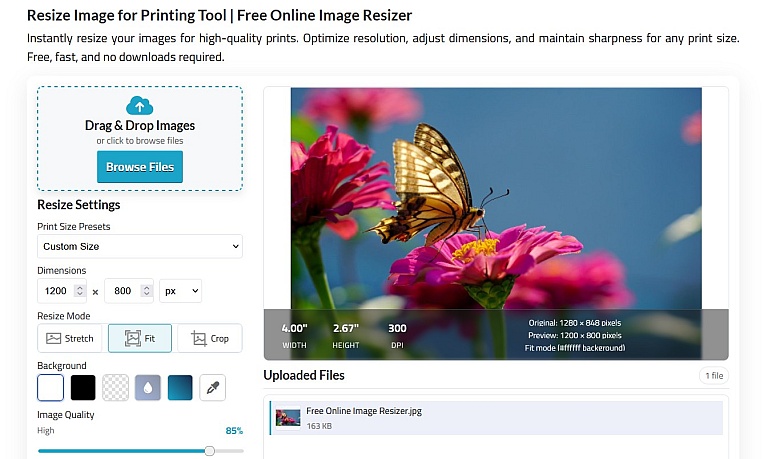
WebYurt's tool is built from the ground up for print preparation. Unlike general-purpose resizers that think in pixels, this one focuses on what matters for print: physical output dimensions (inches/cm) and the correct resolution (DPI).
Why it's great for print:
- Targets specific print DPI requirements, not just pixel dimensions.
- Interface designed around physical measurements (inches, centimetres).
- Maintains image quality while adjusting to your exact specifications.
- Rapid handling of batch uploads, resizing, and downloading seamlessly.
- No account, payment, or software installation is required; everything is processed securely and privately in your browser.
Best for: Anyone who needs to prepare an image for physical printing and wants the correct dimensions and resolution without expensive software or a learning curve.
2. GIMP (GNU Image Manipulation Program)
As the leading open-source image editor, GIMP provides professional-grade tools that rival paid software. Its advanced interpolation methods (like cubic and sinc) ensure high-quality enlargements and reductions suitable for even the most demanding print work.
Why it's great for print:
- Professional-grade, open-source software with no cost or limits.
- Offers cubic and sinc (Lanczos) interpolation for high-quality resampling.
- Batch processing with scripting for handling large volumes of images.
- Full layer and mask support for complex print compositions and touch-ups.
- Available for Windows, Mac, and Linux.
Best for: Users who need a full suite of professional editing tools and are comfortable installing software.
3. IrfanView
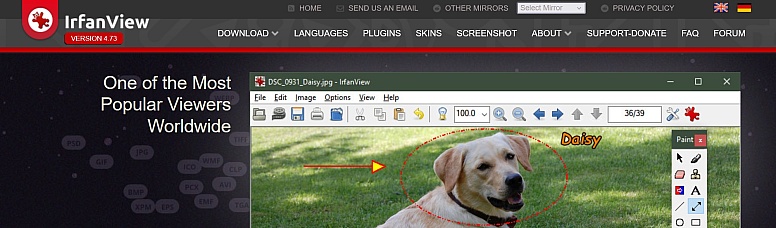
A legendary lightweight application for Windows, IrfanView has been a favourite since 1996. It's incredibly fast, especially for batch resizing, and uses minimal system resources. Its "Resize" dialogue offers precise control, including options to set custom DPI and apply sharpening after resizing—a crucial step for print clarity.
Why it's great for print:
- Extremely fast batch processing of hundreds of images.
- Very small installation footprint (under 5MB), perfect for older computers.
- Support for over 80 file formats, with plugins for even more.
- Allows for customisable sharpening to be applied after the resize operation.
Best for: High-volume batch processing on Windows where speed and efficiency are the top priorities.
4. Birme
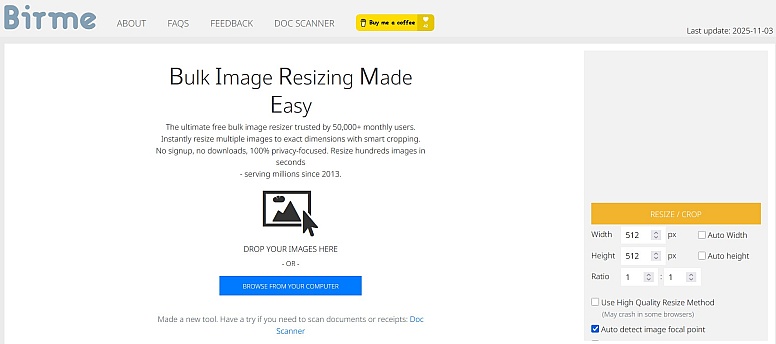
Birme is a specialised online tool that excels at batch processing. It handles multiple files at once, giving you precise control over the output dimensions and quality. A key advantage for privacy-conscious users is that all processing happens locally in your browser—your images are never uploaded to a server.
Why it's great for print:
- Browser-based with 100% local processing for maximum privacy.
- Handles batch upload, resizing, and download seamlessly.
- Offers precise dimension and quality controls for consistent output.
- No practical file size limits for most modern browsers.
- Option to maintain important EXIF data (like camera settings) if needed.
Best for: Users who need to resize multiple images at once with consistent, precise specifications and value their privacy.
5. Photopea
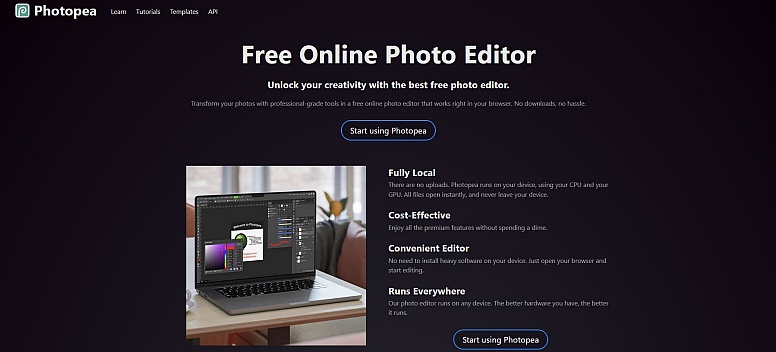
Photopea is a remarkable browser-based editor that closely mimics Adobe Photoshop's interface and capabilities. It handles a vast array of file formats, including PSD, XCF, and Sketch, and offers professional resizing options with multiple interpolation algorithms—all without requiring any installation or payment.
Why it's great for print:
- Powerful, browser-based editor with a Photoshop-like interface.
- Supports advanced formats like PSD, XCF, Sketch, and even RAW.
- Offers a choice of interpolation methods for optimal resizing results.
- Includes full layer management for editing multi-element print designs.
- Works on any device (desktop, tablet, laptop) with a modern browser.
Best for: Users familiar with Photoshop who need powerful, browser-based editing and format compatibility.
6. Canva (Free Tier)
While primarily a design platform, Canva's free version includes solid image resizing capabilities. It's especially useful because it provides preset dimensions for common print products (like flyers, business cards, and social media graphics), allowing you to design and resize in one place.
Why it's great for print:
- Integrates resizing directly into a simple, intuitive design workflow.
- Offers pre-set dimensions for a huge range of common print products.
- Browser-based with no installation, making it accessible from anywhere.
- Includes an extensive library of templates and stock elements.
Best for: Non-designers and small business owners who need to create and resize simple print materials quickly without learning complex software.
7. Preview (macOS)
Mac users often overlook that they already own one of the most capable free image resizers. Preview is pre-installed on every Mac and handles basic to intermediate resizing with excellent quality. Its Tools > Adjust Size menu lets you set dimensions in inches/cm and target a specific DPI, making it perfect for quick print preparation without launching a heavier app.
Why it's great for print:
- Pre-installed on every Mac, completely free and ready to use.
- Allows you to set image dimensions in inches/centimetres and target a specific DPI.
- Includes basic colour adjustment tools to optimise images for print.
- Supports batch resizing for entire folders of images.
- Also handles PDF manipulation, making it a versatile tool.
Best for: Mac users who need a quick, free, and reliable tool for occasional image adjustments and print preparation.
At a Glance: Which Tool Should You Use?
| Tool | Best For | Platform | Key Strength |
|---|---|---|---|
| WebYurt | Both single images & batches, exact specs | Browser | Dedicated print-quality DPI focus |
| GIMP | Professional editing | Windows/Mac/Linux | Most powerful free editor |
| IrfanView | Bulk batches | Windows | Speed & tiny file size |
| Birme | Privacy & batches | Browser | Local processing (no upload) |
| Photopea | Photoshop users | Browser | PSD support & familiar UI |
| Canva | Beginners & templates | Browser | Design + resize in one place |
| Preview | Mac users | Mac | Already installed on your computer |
Quick Tip: Saving Your File for Print
- JPEG: Best for photographs. Use the highest quality setting (lowest compression).
- TIFF: Best for professional printing where you need to preserve every detail without compression. File sizes are huge, but quality is pristine.
- PNG: Good for graphics with text or logos, but be aware that it can sometimes create very large file sizes for photos.
Common Print Resizing Problems (And How to Fix Them)
- “My image is pixelated after resizing.”
The Fix: You are likely making a small image too large. You cannot create detail that isn't there. Try to start with the largest source image possible. If you must enlarge, use GIMP or Photopea and select the “Lanczos” or “Sinc” interpolation method—they do the best job of smoothing out the pixels. - “My print came out with the wrong colours.”
The Fix: Screens use RGB (Red, Green, Blue); printers use CMYK (Cyan, Magenta, Yellow, Black). If your tool supports it (like GIMP or Photopea), convert the image to CMYK before saving. If not, slightly desaturate your image (reduce vibrance) on screen, as screens tend to make colours look brighter than they print. - “The file size is too big to email to the print shop.”
The Fix: Once you have set the correct dimensions (inches) and resolution (300 DPI), you can adjust the compression. In tools like IrfanView or Birme, look for a “Quality” slider. Setting it to 90–95% usually drastically reduces file size without hurting print quality.
Frequently Asked Questions
What DPI should I use for standard photo prints?
For high-quality prints (magazines, photo paper, flyers), use 300 DPI. For large-format prints (banners, posters viewed from a distance), you can often use 150 DPI to keep file sizes manageable.
Can I resize a low-resolution image to make it printable?
You can make a low-res image larger, but you cannot create detail that doesn't exist. Enlarging a small web image (72 DPI) to 8x10 inches at 300 DPI will result in a blurry or pixelated print. Always start with the highest resolution source file available.
Do online resizers upload my images to a server? Is that safe?
It depends. Tools like Birme and WebYurt process images locally in your browser—your files never leave your computer. Others may upload to a server. If privacy is a concern, choose a tool that clearly states “local
What’s the difference between resizing for web and resizing for print?
For the web, you only care about pixel dimensions (e.g., 1200x800 pixels) and file size. For print, you must care about physical dimensions (inches/cm) and resolution (DPI). A print-ready file defines how large the image will be on paper and how many dots of ink per inch it contains.
Will I lose metadata like the date or camera settings when I resize?
Some tools strip metadata by default to reduce file size. If you need to preserve EXIF data (e.g., for professional lab requirements), check the tool's settings. Birme and GIMP allow you to keep metadata; others may discard it unless you adjust the preferences.
With these seven tools and the troubleshooting tips above, you're ready to prepare images that will look crisp and professional on paper—every time.
LEAVE A COMMENT




0.2654