



Top 10 Pixel Art Generators for Creators & Designers
Pixel art remains a popular visual style in games, digital illustrations, and social media content. While it may look simple, creating precise, retro-inspired pixel designs can be time-consuming and technically demanding. That’s where pixel art generators come in. These tools allow artists, hobbyists, and developers to create or convert images into pixel art quickly, apply stylistic effects, or design sprites for games.
People search for top pixel art generators to save time, experiment with different styles, or explore creative possibilities without needing advanced drawing skills. Whether you’re designing characters for a video game, creating social media graphics, or just experimenting for fun, these tools can streamline the process.
Quick Comparison
| Tool / Website | Best For | Key Feature | Pricing Model |
|---|---|---|---|
| Colorik Pixel Art Generator | Image-to-pixel conversion | Quick image pixelation with adjustable settings | Free |
| Piskel | Beginners & hobbyists | Online sprite editor with layers | Free |
| Lospec Pixel Editor | Web-based pixel art | Simple interface, palette support | Free |
| Aseprite | Professional pixel artists | Advanced animation tools | Paid (one-time) |
| Pixilart | Social sharing & online drawing | Community features, cloud saving | Free / Paid options |
| Dotpict | Mobile users | Mobile-friendly, grid interface | Free / Paid |
| Pro Motion NG | Game developers | Tiles, animation, and layers | Paid |
| Make Pixel Art | Quick experimentation | Browser-based, simple UI | Free |
| Pixaki | iPad creators | Layered animation and export options | Paid |
| Pixelmator | Mac users | Pixel-level editing & general graphics | Paid |
Top Pixel Art Generators
We’ve lined up each tool with the essentials—what it does, who it’s for, its perks and quirks—so you can find the ones that match your style and skill level. We keep this list fresh, swapping in new tools and retiring the ones that have seen better days.
Colorik Pixel Art Generator
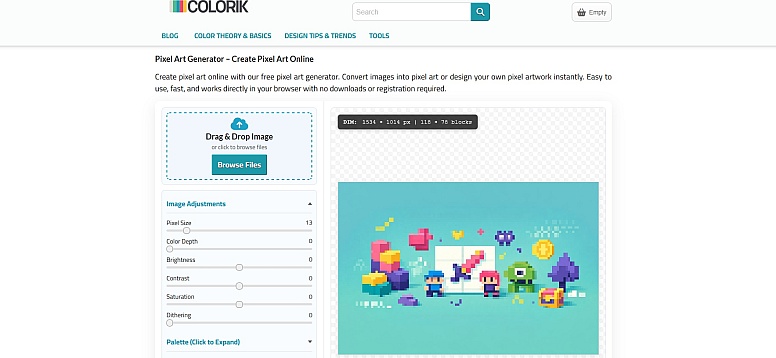
- What it does: Converts images into pixel art quickly with adjustable pixel sizes and color options.
- Best suited for: Users who want fast image-to-pixel conversion without manual drawing.
- Strengths:
- Simple, one-step image pixelation
- Adjustable pixel size and color palette
- Web-based, no installation required
- Limitations:
- Limited editing or layering after conversion
- Not designed for full animation projects
- Notable detail: Experienced users often use it to generate base images for further refinement in editors like Aseprite or Piskel.
Piskel
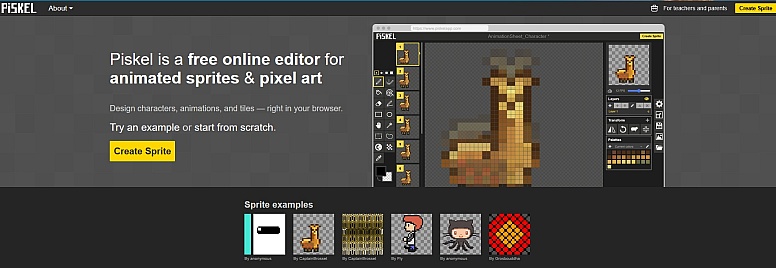
- What it does: Piskel is a free, browser-based pixel art and sprite editor with an intuitive interface and support for layers and animation frames.
- Best suited for: Beginners, hobbyists, or anyone needing a quick online sprite editor.
- Strengths:
- Easy-to-use interface
- Real-time preview of animations
- Cloud saving for projects
- Limitations:
- Limited advanced tools compared to desktop software
- Requires an internet connection for the online version
- Notable detail: Experienced users appreciate its keyboard shortcuts for faster animation editing.
Lospec Pixel Editor
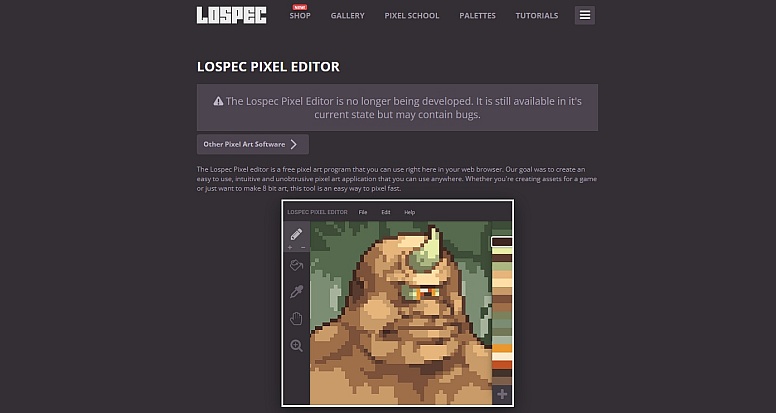
- What it does: A simple, web-based editor optimized for pixel art with palette management and basic animation support.
- Best suited for: Quick sketches, palette experiments, and small sprite design.
- Strengths:
- Lightweight, fast, and browser-based
- Multiple preset palettes
- Undo/redo functionality
- Limitations:
- Fewer animation and export options than Piskel or Aseprite
- No advanced brush tools
- Notable detail: Lospec also maintains curated pixel art resources, making it easy to find inspiration.
Aseprite
- What it does: A professional-grade pixel art editor with advanced animation capabilities, layers, and tilemap support.
- Best suited for: Game developers and experienced pixel artists.
- Strengths:
- Comprehensive layer and frame management
- Customizable brushes
- Export options for spritesheets and GIFs
- Limitations:
- Paid software (one-time cost)
- Learning curve for beginners
- Notable detail: Aseprite supports scripting in Lua for automating repetitive tasks.
Pixilart
- What it does: Online drawing platform focused on pixel art with community sharing features.
- Best suited for: Artists who want to share work or collaborate online.
- Strengths:
- Free cloud storage for projects
- Built-in social platform
- Layer and animation support
- Limitations:
- The web version can be slower with large projects
- Ads in the free version
- Notable detail: Offers community challenges to inspire artists and encourage participation.
Dotpict
- What it does: Mobile-focused pixel art editor with grid-based drawing and undo support.
- Best suited for: Casual users creating pixel art on phones or tablets.
- Strengths:
- Intuitive touch interface
- Grid and snap tools
- Community sharing
- Limitations:
- Smaller canvas size
- Limited export formats
- Notable detail: Its “dot-by-dot” input method helps beginners maintain precision.
Pro Motion NG
- What it does: Desktop software aimed at game developers, with tilemaps, layers, and animation.
- Best suited for: Professionals making complex game assets.
- Strengths:
- Tilemap editor
- Advanced frame management
- Custom brushes and palette tools
- Limitations:
- Paid software
- Overwhelming for beginners
- Notable detail: Supports both bitmap and vector layers, which is rare for pixel art editors.
Make Pixel Art
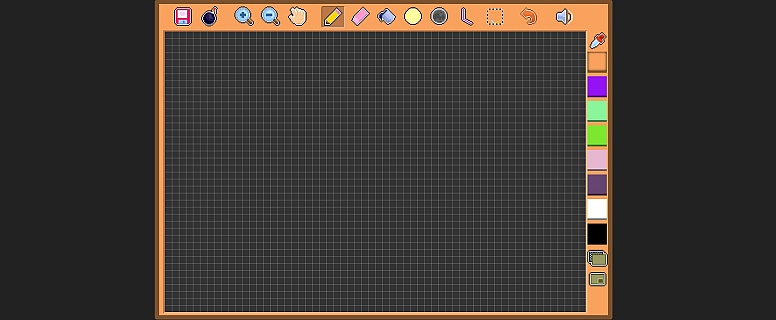
- What it does: Browser-based tool for quick experimentation and practice.
- Best suited for: Beginners testing pixel art without installing software.
- Strengths:
- Simple and fast
- No registration required
- Adjustable canvas and colors
- Limitations:
- Limited layer and animation support
- Minimal export options
- Notable detail: Excellent for teaching or learning pixel art fundamentals.
Pixaki
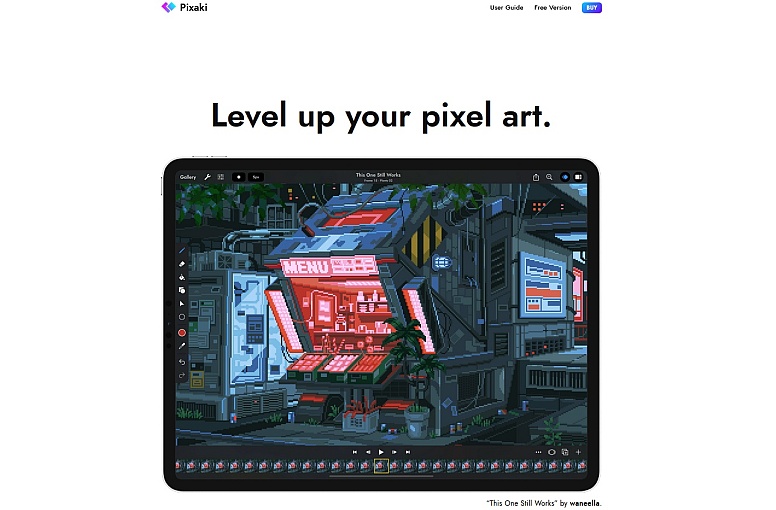
- What it does: iPad-based pixel art app with layers, animation, and export features.
- Best suited for: Artists who prefer iPad drawing and stylus input.
- Strengths:
- Advanced animation features
- Stylus support for precision
- Export to spritesheets and GIFs
- Limitations:
- Paid app
- iOS only
- Notable detail: Integrates with iCloud, making collaboration across devices seamless.
Pixelmator
- What it does: Mac-based graphics editor with pixel-level editing capabilities.
- Best suited for: Mac users needing both pixel art and general image editing.
- Strengths:
- Layer support and image effects
- Vector and pixel editing
- Optimized for Mac performance
- Limitations:
- Paid software
- Animation features are limited
- Notable detail: Its combination of pixel and general editing tools makes it versatile for hybrid projects.
How to Choose the Right Pixel Art Generator
- Skill level: Beginners benefit from simple, online editors; experienced artists may prefer feature-rich desktop apps.
- Purpose: Quick image conversion, sprite creation, or full animation projects require different tools.
- Platform: Consider mobile vs. desktop, or multi-device support.
- Trade-offs: More features often mean a steeper learning curve; simpler tools offer speed and accessibility.
- Common mistakes: Starting with complex software too early or ignoring palette management can hinder workflow.
- Simplicity advantage: For small projects, browser-based or mobile apps save time and reduce friction.
FAQs
What is a pixel art generator? A tool that helps create pixel-based graphics, often with drawing or automatic image-to-pixel conversion features.
Are free options good enough? Yes, for beginners or small projects. Paid tools often offer advanced animation, layers, or export options.
Which features matter most? Layers, animation frames, palette management, and export formats are key.
Can these tools convert photos to pixel art? Some, like Pixel It, allow quick conversion, but manual touch-ups are usually needed.
How often should I re-evaluate my tools? At least once a year, or when starting new projects with different requirements.
Do mobile apps offer the same features as desktop apps? Generally, no; mobile apps prioritize simplicity and ease of use over advanced editing features.
Is it necessary to learn complex software early? Not always—starting with simpler tools often builds foundational skills before moving to advanced apps.
Can pixel art generators be used professionally? Yes, tools like Aseprite, Pro Motion NG, and Pixaki are industry-standard for game development and professional projects.
LEAVE A COMMENT





0.2983