



Create Video Greeting Cards Online for Free
Sending a paper card is nice. Receiving a video greeting card is a special treat. It combines your smiling face, your voice, and a personal message all in one. You can send it instantly, anywhere in the world. This article explains how to create digital greetings easily and for free. Video greeting cards are perfect for birthdays, holidays, or just to say hello. They feel more personal and much more fun than a text message or an email.
Here’s the core of what you need to know:
- A video greeting card is a short, personal video message you create and send digitally.
- You don't need expensive software. A smartphone and a free online tool are enough.
- The best cards mix a clear message, good lighting, and a touch of creativity.
- You can add text, music, and simple effects to make your card unique.
- Sending is easy—via a link, email, or messaging app.
What Is a Video Greeting Card?
Think of it like a paper card, but alive. Instead of a folded piece of paper with a picture and your handwriting, you create a short video. You are the main part of the card. You talk directly to the person you are sending it to. You can show your face, your surroundings, or even a little performance. You can add text over the video that says "Happy Birthday!" or "Congratulations." You can also add a song in the background. When you finish, you send the video file or a link to it. The person clicks and watches your personal message.
Why Choose a Video Greeting Card?
Why would you make a video instead of buying a card? The reasons are simple.
- They Feel More Personal. Your voice and your smile carry emotion that text cannot. The person sees your excitement or your care.
- You Can Be Creative. You are not limited to a store-bought design. You can film anywhere, add your own graphics, or include other family members and pets.
- They Are Easy to Share. You create one video and can send it to many people at once. No stamps, no trips to the mailbox.
- They Last Forever. A paper card might get lost or thrown away. A digital video file can be saved on a phone or computer and watched for years.
- They Are Often Free. The tools to make basic videos cost nothing. You only need a device with a camera.
What You Need to Get Started
You do not need a professional studio. Your equipment is probably in your pocket or on your desk.
- A Recording Device. This is almost always a smartphone. The camera is good enough. You can also use a computer webcam or a tablet.
- A Quiet, Well-Lit Space. Find a room without too much background noise. Sit facing a window for soft, flattering light. Avoid having a bright light or window behind you, as it will put your face in shadow.
- A Story or Message. Know what you want to say. It helps to have a few key points in mind so you don't ramble. Keep it short and sweet.
- A Free Editing Tool. This is the secret. Your phone's basic photo app can trim video clips. But for adding text, music, and effects, you need a simple editor. We will look at the best free options next.
The Best Free Tools to Make Video Cards
You have many choices. Here are some of the easiest and most powerful free tools. They all work right in your web browser on your computer. Some also have mobile apps.
- Canva. This is a favorite for a reason. Canva is not just for pictures. Its video editor is incredibly simple. You start with a blank screen or a template. You upload your video clip. Then, you can drag and drop text, stickers, and elements. Adding a background song is as easy as searching Canva’s free music library. You can change the length of your clip with a simple slider. It’s perfect for making polished cards without any video editing skill.
- CapCut. This tool is powerful but still user-friendly. It started as a mobile app and now has a great web version. CapCut is excellent for cutting clips together smoothly. It has a huge library of trending music, text styles, and effects. If you want to make something a bit more dynamic or follow a popular style, CapCut is a strong choice.
- Clideo. This website is a collection of simple video tools. It has a dedicated "Video Greeting Card" maker. You pick a template, upload your video, and customize the text. It is very straightforward and fast if you don't want many creative options. It’s a no-fuss option.
- Online Converters & Trimmers. Sometimes you just need to make a video file smaller to send it. Websites like OnlineConvert or the Clideo Video Compressor can shrink a video's file size without ruining the quality. This is helpful if your recording is too large to email.
Choosing the Right Tool
A small table can help you decide:
| If you want to... | Then try this tool... | Because it is best for... |
|---|---|---|
| Add text, music, and use templates easily. | Canva | First-time users who want a clean, designed look. |
| Use trendy effects, music, and smooth edits. | CapCut | Creators who want a bit more style and energy. |
| Finish very quickly with a simple template. | Clideo's Greeting Card Maker | Speed and simplicity over deep customization. |
| Just make a large video file smaller to send. | Online Video Compressor | Solving the technical problem of file size alone. |
Your Step-by-Step Creation Guide
Let's walk through making a birthday video card using Canva, as it covers all the bases. The steps are similar in other apps.
Step 1: Plan Your Message. Before you open any app, think for one minute. Who is this for? What is the occasion? Jot down three things you want to say. For example: 1) "Happy 10th Birthday, Alex!" 2) "I remember your great soccer goal last week." 3) "I hope you have an amazing day and love your presents." This keeps your video focused.
Step 2: Record Your Video Clip. Open your phone's camera app. Switch to video mode. Hold the phone horizontally (sideways). This gives you a widescreen video that looks better than a tall, vertical one. Position it so your face is well-lit and centered. Press record and say your planned message. Smile! You can do a few takes if you stumble. Keep it under 60 seconds.
Step 3: Start a New Project in Canva. On your computer, go to Canva. Search for "Video" when creating a new design. Choose the standard video size (1920x1080 pixels). You'll see a blank timeline.
Step 4: Upload and Add Your Video. Click "Uploads" and drag your video file into Canva. It will appear in your media library. Drag it from the library onto the timeline at the bottom of the screen.
Step 5: Customize Your Card. This is the fun part. Look at the left-hand menu.
- Text: Click "Text." Choose a heading style and drag it onto your video. Double-click to change the words to "Happy Birthday!" You can move it, change the font and color.
- Elements: Click "Elements." You can search for things like "birthday confetti" or "balloons" and drag them onto your video. Place them so they don't cover your face.
- Audio: Click "Audio." Search for "birthday" or "happy." You'll see songs and sound effects. Drag one onto your timeline. A key tip: use the volume slider on the music track to lower it to about 20%. The music should be in the background, not louder than your voice.
Step 6: Download and Send. Click the "Share" button in the top right. Then click "Download." Choose the MP4 video format. Canva will process your video and save it to your computer. Now, attach this file to an email, send it via WhatsApp, or upload it to a private cloud link (like Google Drive) and share the link.
Creative Ideas to Make Your Card Stand Out
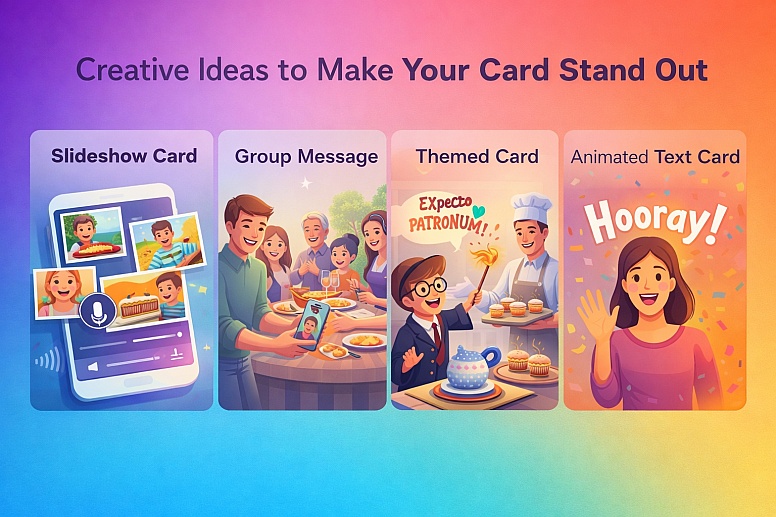
Moving beyond a simple "talking head" video makes your card memorable. Try one of these ideas:
- The Slideshow Card. Instead of one video, use a series of photos. Add a voiceover narrating the memories in each picture. Both Canva and CapCut make this simple.
- The Group Message. Pass the phone around at a family dinner. Have everyone say a quick sentence to the person. Edit the short clips together into one video.
- The Themed Card. Is the person a fan of a movie or a sport? Dress up or use props. Film in a relevant location, like a garden for a nature lover or a kitchen for a foodie.
- The Animated Text Card. Use text as the main character. Film a simple clip of you waving. Then, use an editor's text animation feature to make words like "Hooray!" or "You did it!" pop onto the screen in time with music.
How to Send Your Video Greeting Card
You have a video file. How do you get it to someone?
- Email: Most email services have a size limit (often 25MB). If your video is under that limit, attach it directly. Write a subject line like "Your Video Card is here!"
- Messaging Apps (WhatsApp, Telegram, iMessage): These apps compress video automatically for quick sending. The quality is usually fine for a greeting card. This is the fastest method.
- Cloud Link (The Best Way for Large Files): Upload your video to Google Drive, Dropbox, or WeTransfer. These services give you a link. You send the link in an email or text. The person clicks the link to watch or download the video in full quality. This avoids any file size limits.
Your Turn to Create Something Special
Paper cards have their place. But a video greeting card is a modern, heartfelt twist. It captures a real moment of you, for someone else. It takes a little effort, but that effort is what makes it meaningful. You now know the simple recipe: a phone, a quiet spot, a clear message, and a free tool like Canva.
Don't wait for the next big holiday. Think of someone you haven't spoken to in a while. Record a quick 30-second "Hello, I was thinking of you" video tonight. Add a simple text title with their name. Send it. You will make their day, and you'll see just how easy and rewarding it is. Go on, press record.
Frequently Asked Questions
What is the best free app for making video greeting cards? For most people, Canva is the best place to start. It balances powerful features with true simplicity. For more dynamic, social-media-style edits, CapCut is an excellent free alternative.
How long should a video greeting card be? Keep it short. Aim for 15 to 60 seconds. This is long enough to deliver a warm message but short enough to hold attention and keep the file size manageable for sending.
Can I use copyrighted music in my video card? You should not use popular songs from Spotify or CDs without permission. The free tools (Canva, CapCut) provide large libraries of music and sound effects that you are allowed to use in your personal projects. Always use music from these libraries to be safe.
My video file is too big to email. What can I do? Do not email it. Use a cloud service. Upload your video to Google Drive or WeTransfer, get a shareable link, and send that link in your email instead. This is the standard method for sending large video files.
Do I need to create an account to use these tools? For most free online editors like Canva and CapCut, you need a free account to save and download your projects. Creating an account is simple and usually requires just an email address.
LEAVE A COMMENT







0.1668