



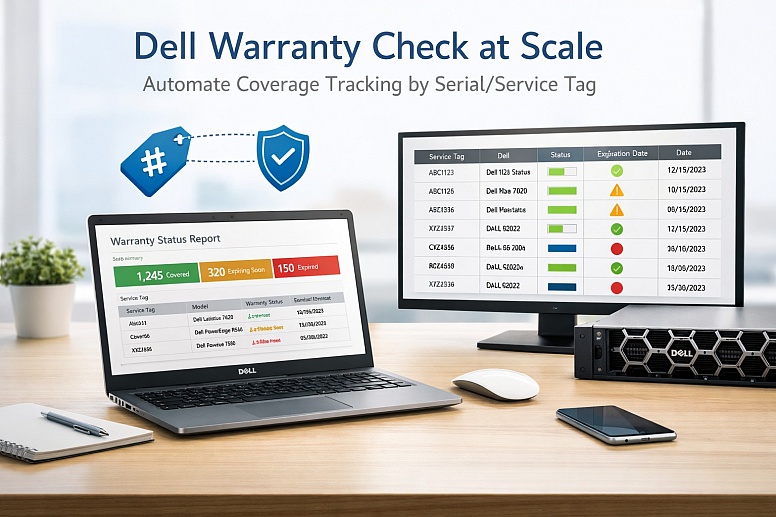
Dell Warranty Check at Scale
Automate Coverage Tracking by Serial/Service Tag
If your company operates a large number of Dell devices, you shouldn't be tracking their warranties manually. Managing warranty start and end dates, different coverage types, and regional differences can be complicated and time-consuming. When done manually, it’s easy to miss important updates, leading to expired warranties or delays in repairs.
Automation offers a better solution. Automating warranty management saves time, prevents mistakes, and makes it easier to handle devices across different regions. In this article, we'll explore how businesses can set up automated Dell warranty tracking and the benefits it brings to managing large fleets of devices efficiently.
What to Track in Dell Warranty Management
Dell offers various warranty terms for its devices, typically ranging from 1-year to 3-year coverage, with options for extended warranties. These warranties often come with specific start and end dates, which need to be carefully tracked.
Knowing the exact duration of each device’s coverage is crucial for ensuring that devices remain covered for repairs, replacements, or support services. If businesses fail to monitor these dates accurately, they risk letting warranties expire without realizing it, leaving their devices unprotected. This could lead to unnecessary out-of-pocket repair costs or downtime if an issue arises after the warranty has ended.
To avoid these risks, businesses should automate Dell warranty checks. Using Dell's service tags or serial numbers, companies can set up automated systems that send alerts when warranties are about to expire, allowing for timely renewals or replacements. This approach ensures that devices are always covered, eliminating manual checks and reducing the chances of missed updates.
Regional Coverage & Entitlement Types
Warranty coverage can vary significantly by region. For example, a warranty purchased in North America might offer different services compared to one purchased in EMEA (Europe, the Middle East, and Africa).
This can include differences in response times, repair locations, or available services. Understanding these regional variations is key to managing warranties across a global business.
In addition to regional differences, Dell warranties also include various entitlement types, such as next-business-day on-site service or accidental damage protection.
These entitlements can change based on where the device is located, so it's essential to track both the region and entitlement type for each device. Using Dell's service tags, businesses can automatically check if their devices are eligible for specific services based on the region and warranty type.
Types of Warranty Entitlements
Dell offers different levels of warranty coverage, each with its own set of entitlements. The most common types include:
- Basic Warranty: This is the standard warranty, typically offering limited support and repair options, often with longer response times.
- ProSupport: A step up from the basic warranty, offering more comprehensive support, including 24/7 access to Dell’s technical support team and faster response times.
- ProSupport Plus: The highest level of service, including everything in ProSupport, plus accidental damage protection and proactive monitoring of your devices to prevent issues before they happen.
Tracking entitlement types across a fleet is essential for compliance and operational efficiency. With automated tracking, businesses can easily identify which devices are covered by which entitlement type, ensuring that they are taking full advantage of their warranty coverage.
Automation can also help manage renewals and upgrades, ensuring that devices are always covered under the most appropriate and cost-effective warranty plan.
Building a Warranty Dashboard for Fleet Management
A warranty dashboard centralizes all warranty-related data for businesses managing large fleets of Dell devices. It provides real-time access to important details like device status, warranty expiry dates, and claim history.
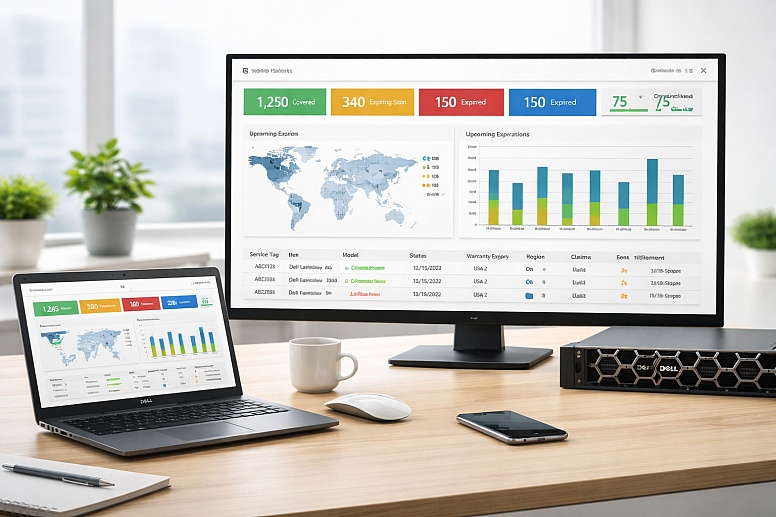
Key features to include:
- Device Status: Track whether a device is under warranty.
- Warranty Expiry: Display upcoming expiration dates.
- Claim History: Record all past warranty claims.
- Region-Specific Entitlements: Show services based on the device’s location and warranty type.
A central dashboard simplifies the management of warranties, providing an overview of all devices in one place.
How Automation Enhances Fleet Management
Automating warranty tracking improves efficiency by providing real-time updates. Benefits include:
- Automated Alerts: Receive notifications for upcoming warranty expirations.
- Repair Eligibility Notifications: Get alerts about devices eligible for repairs under warranty.
These automated features reduce administrative time by eliminating the need for staff to manually track warranty timelines, monitor device statuses, or keep an eye on multiple spreadsheets.
Integrating with Dell’s Online Tools
Dell provides several tools that can streamline warranty management when integrated into your dashboard. The Dell Service Tag is key to checking warranty details for each device, and Dell’s warranty lookup tool allows businesses to pull up accurate, real-time warranty status information based on the unique service tag or serial number.
Businesses can take advantage of these tools by integrating Dell’s API with their internal systems, such as asset management software or IT management platforms. This integration ensures that the warranty data within the dashboard is always up-to-date, without the need for manual data entry.
For example, once a device’s service tag is entered into the system, the warranty details can be automatically fetched and displayed on the dashboard, including the warranty start date, end date, and entitlement type. This integration removes the need for multiple manual lookups and ensures that all warranty data is centralized and accurate.
Handling User Moves Across Countries
When users or devices move across countries, warranty coverage can become complicated. Warranty terms and coverage policies often vary depending on the region, leading to potential issues if a device moves from one country to another.
Common Pitfalls:
- Differing Terms: Warranty terms such as repair timelines, support levels, or services included may differ by region. A device covered under a standard warranty in one country might only receive limited coverage in another country.
- Service Regions: Dell's service regions can limit where devices can be repaired or replaced. A device purchased in one country may not be eligible for repair or support in another country, or it may require additional steps for international coverage.
- Repair Policies: Different regions may have varying policies regarding device repairs. Some countries may require a device to be shipped back to its original region for service, while others may allow local repairs.
Best Practices for Handling Global Warranty Management
Managing warranty coverage across multiple regions requires a strategic approach to ensure consistency and minimize risks. Here are some best practices for global warranty management:
International Repair Options:
Establish agreements with Dell or third-party repair centers that can handle warranty claims in multiple regions. This ensures that devices can be serviced locally without having to be shipped back to the original country.
Coverage Extensions:
To ensure IT preventive maintenance, it might be necessary to extend warranties for devices moved internationally. Automating the process of requesting and applying warranty extensions can help maintain coverage, especially when devices are deployed in areas with longer repair times.
Mitigating Coverage Gaps:
When employees relocate or devices are transferred, it’s essential to check the regional warranty status. Using automation to track these moves and update warranties reduces the risk of coverage gaps. Additionally, having clear policies for transferring devices between regions and updating warranty information ensures no devices are left without support.
Triggering Repairs: RMA Intake and Logistics
RMA, or Return Merchandise Authorization, is the process by which a business authorizes the return or repair of a defective product under warranty. When a device malfunctions or fails, RMA ensures that it is either replaced or repaired according to the terms of its warranty.
This process is essential for managing warranty claims, ensuring that faulty devices are quickly addressed without unnecessary delays or confusion. It streamlines IT hardware procurement, preventing extended downtime for critical equipment and maintaining operational efficiency.
Automating the RMA Process
Automating the RMA intake process significantly reduces the manual effort involved in handling warranty claims. By linking the RMA process with a system that tracks warranty status, businesses can automatically trigger repair requests when devices are identified as defective. This ensures that repairs are initiated promptly, without needing to wait for manual intervention.
Steps to Automate RMA Intake:
The process begins when a device is flagged as faulty. Automation tools can then check the warranty status of the device and initiate an RMA request, sending it directly to the appropriate repair team or service center.
Integration with Warranty Data:
By integrating warranty data with the RMA process, businesses can ensure that only eligible devices are sent for repair. This integration helps improve the repair cycle time by ensuring devices that qualify for repair under warranty are promptly addressed, without any delays caused by manual checks or approvals.
Streamlining Logistics:
Tracking devices during the RMA process ensures that they move through the system efficiently. Automated logistics tools can monitor the progress of the repair, providing real-time updates on the status of the device, whether it's being repaired or awaiting shipment back to the user. This allows businesses to better manage device turnaround times and avoid unnecessary delays.
Tracking and Reporting RMA Activity
To optimize warranty and repair processes, businesses must track RMA requests in real-time.
- Tracking RMA Requests: Automated systems can record RMA requests and track their progress through each stage. This allows teams to quickly identify bottlenecks in the process and resolve them before they impact operations.
- Generating Reports: Businesses can generate detailed reports on RMA activity, providing insights into repair history and recurring trends. These reports enable proactive device management by identifying patterns that may suggest issues with specific models or suppliers, helping businesses take corrective actions early.
Aligning Refresh Cycles with Warranty Realities
Aligning device refresh cycles with warranty expiration dates ensures devices are replaced before warranties lapse, preventing costly repairs once devices are out of warranty. Automated tools can track warranty timelines and trigger refresh schedules when devices near their warranty end. This ensures timely replacements, reducing the risk of unexpected repair costs.
Lastly, automation helps businesses forecast budgets for device refreshes by tracking warranty data. By predicting when devices are due for replacement, companies can plan their budgets in advance, making proactive decisions and avoiding surprises.
Conclusion
Automating warranty tracking not only reduces manual effort but also provides businesses with better control over their IT assets. By implementing automated solutions, companies can ensure timely updates, align refresh cycles, and proactively manage repair requests. This approach boosts efficiency, prevents gaps in coverage, and supports smarter decision-making.







0.3139