




Top File Converters for Every Format: The Best File Converters for Any Job
Sometimes a file just won't work. Your video is too big to email. Your picture is in the wrong format for a website. Your document needs to open on a different computer. A file converter fixes this problem. It changes your file from one type to another.
Think of it like a translator for computers. A translator changes English words into Spanish words so more people can understand. A file converter changes a PNG picture into a JPG picture, so more programs can open it.
This piece shows you the best tools for this job. We put them into clear groups so you can find the right one fast.
What You Will Learn Here:
- The best free tools for converting images, like AVIF to JPG.
- Simple ways to shrink video files or change their format.
- How to change documents without losing their look.
- Easy methods to convert music and audio files.
- When you might need a professional, paid converter.
Image File Converters
Photos and pictures come in many types. JPG, PNG, GIF, WebP, AVIF – the list is long. Each type has a special job. A JPG is great for photos. A PNG can have a transparent background. A new format called AVIF makes very small, high-quality files.
But sometimes you get the wrong type. You might have an AVIF file from a new camera, but an old website only accepts JPG. You need a converter. Here are the best places to convert images.
1. Online Converters (Fast and Easy)
Online converters work in your web browser. You do not need to install software. You upload your picture, choose the new format, and download the result. It is very fast for a few files.
CloudConvert is a leader here. It handles over 200 file types, not just images. The interface is clean. You just drag your file onto the webpage.

How to use CloudConvert for an AVIF to JPG conversion:
- Go to the CloudConvert website.
- Click "Select File" and choose your AVIF image.
- Next to "Convert to", click and choose "JPG".
- Click the "Convert" button.
- When it finishes, click "Download".
Another excellent choice is Convertio. It works the same way. It is good for quick conversions. Both tools are free for small tasks. For many files or very large pictures, they have paid plans.
Best for: Converting a few images quickly. Great for new formats like AVIF or WebP to standard JPG or PNG.
2. Dedicated Software (For Power and Many Files)
Software you install on your computer is more powerful. It can convert hundreds of pictures at once. It works without an internet connection. This is best for photographers or people managing lots of images.
XnConvert is the top free tool for this job. It is used by experts. You can not only change the format but also resize, rename, and add effects to many images in one step.
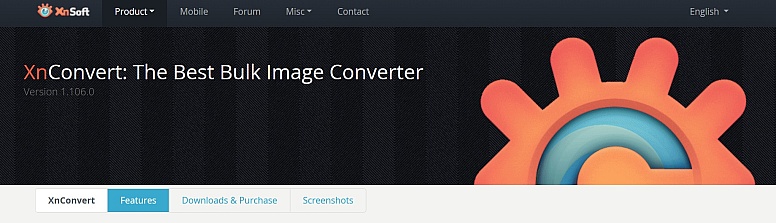
Why experts like XnConvert:
- Batch Processing: Convert a whole folder of 1000 pictures in one click.
- Actions: You can save a set of steps (like "convert to JPG, resize to 800px wide, rename with date") and use it again.
- No Watermarks: The free version does not add any logos to your pictures.
- Wide Format Support: It reads almost every image type ever made.
If you use a Mac, Preview is a hidden gem. Open your image in Preview, click "File", then "Export". You can choose JPG, PNG, or other formats. It is simple and already on your computer.
Best for: Converting many images at once, or when you need to edit them during conversion.
3. Expert Advice for Image Conversion
Choosing the right format matters more than the tool. Here is a simple guide:
- Use JPG for photographs and realistic images. It makes the file size small.
- Use PNG for logos, graphics, or screenshots where you need sharp edges or a transparent background.
- Use WebP or AVIF for websites. They make pages load faster, but check if all your visitors' browsers support them.
A key tip: Every time you save a photo as a JPG, it loses a tiny bit of quality. Convert from your original file only once. Do not convert a JPG to a PNG, then back to a JPG. The quality will get worse.
Video File Converters
Videos are big files. Converting them can make them smaller for email or social media. It can also change the format so it plays on a phone, tablet, or TV.
1. Free Desktop Software
HandBrake is the most trusted free video converter. It is open-source, which means anyone can check the code. It is safe and has no viruses. It is very powerful but can look complicated at first.
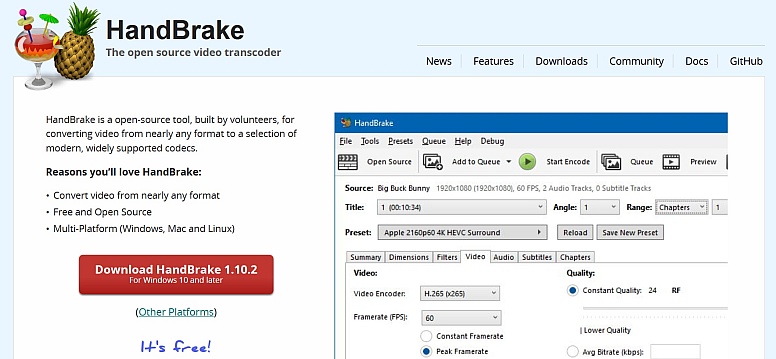
What makes HandBrake great:
- Presets: Use the "Fast 1080p30" preset for a good balance of quality and size. It works for most needs.
- Compression: It makes video files much smaller while keeping good quality.
- Control: You can change many advanced settings if you want to learn.
VLC Media Player is famous for playing any video. But it can also convert files. Go to "Media" > "Convert / Save". Add your video, click "Convert", and choose a profile like "Video for YouTube HD". This method is less intuitive than HandBrake but uses a tool you might already have.

Best for: People who convert videos often and want full control, especially for shrinking large video files.
2. Online Video Converters
For a single, quick video conversion, online tools are easier. OnlineConvert.com is a reliable choice. It handles videos, audio, images, and documents. Just like with images, you upload, choose a format (like MP4), and download.
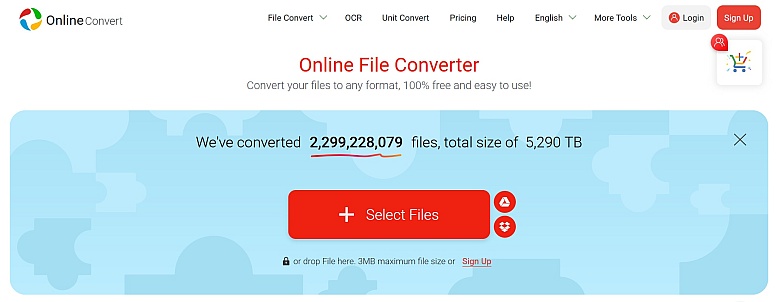
Remember: Videos are large. Uploading and downloading can take time. It depends on your internet speed. Do not close the browser tab while it works.
Best for: Converting a short video quickly without installing software.
3. Downloading and Converting Streaming Videos
Sometimes the file you need is not even on your computer yet. It might be a video on YouTube, Vimeo, Facebook, or another streaming website. In that case, you need a tool that can both download and convert the video.
Allavsoft Video Downloader Converter is a popular option for this. It can download videos, music, and playlists from many websites, then automatically convert them into formats like MP4, MP3, AVI, MOV, or WAV.
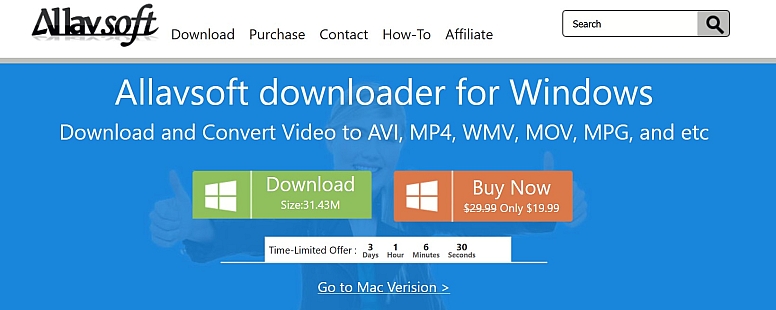
What makes Allavsoft useful:
- Download + Convert Together: You can save a video and convert it in one step.
- Audio Extraction: Turn music videos or podcasts into MP3 audio files.
- Batch Downloads: Download multiple videos or playlists at once.
- Wide Format Support: Works with many common video and audio formats.
- Streaming Website Support: Compatible with many popular video platforms.
Unlike browser-based converters, software like Allavsoft runs directly on your computer. This can make large downloads and conversions more stable, especially for long videos or high-quality formats like 4K.
Best for: Downloading online videos and converting them into formats for phones, editing software, offline viewing, or audio playback.
A key tip: Always respect copyright rules and the terms of the website you are downloading from. Use downloaded media only when you have permission or when the content is legally available for personal offline use.
4. Expert Advice for Video Conversion
The most important settings are the codec and bitrate.
- Codec: For most uses, choose H.264. It is the most compatible format. It plays on phones, computers, and websites. The newer H.265 (HEVC) makes smaller files but does not play on all older devices.
- Bitrate: This controls the file size and quality. A higher bitrate means better quality, but a bigger file. Online tools and presets like "Fast 1080p30" choose a good bitrate for you.
A key tip: Always keep your original video file. Make your converted copy from that original. Converting an already compressed video will result in poor quality.
Document File Converters
You might have a PDF but need a Word document to edit the text. Or you have a Pages file (from a Mac) but need to send it to someone with a Windows PC. Document converters solve this.
1. For PDFs to Editable Formats
Adobe Acrobat Reader DC is the standard for PDFs. The free version lets you view and print. To convert a PDF to Word, you need the paid Acrobat Pro. It does the job very well, keeping the layout.
For a free option, Smallpdf is a popular online tool. It has a clean, simple website. You can drag a PDF to convert it to Word, Excel, or PowerPoint. The free version has a limit of two tasks per hour. It works well for simple documents.
LibreOffice is a free, full office suite you can install. Its "Draw" program can open PDFs and let you edit the text and objects. It is not perfect for complex layouts, but it is powerful and completely free.
Best for:
- Adobe Acrobat Pro: Perfect results, but you pay for it.
- Smallpdf: Quick, free conversions for simple documents.
- LibreOffice: A free, all-in-one solution if you convert often.
2. For Other Document Types
Sometimes you just need to open a strange file. Google Docs can be a secret converter. Go to Google Drive, upload your file (like an .odt or .pages file), right-click on it, and choose "Open with" > "Google Docs". It will convert it to a Google Docs format. Then you can download it again as a Microsoft Word file or PDF.
Best for: Opening odd document formats and converting them to something standard.
3. Expert Advice for Document Conversion
Converting a document is different from converting an image. The goal is to keep the editable text and structure, not just a picture of the page.
PDF to Word conversion is hard because a PDF is like a snapshot. The converter must guess where paragraphs and tables are. Simple documents with clear text convert well. Fancy resumes with columns and boxes often get messy.
A key tip: If you create a document you know others will need to edit, save it in a common format like.docx(Word) from the start. Do not only save it as a PDF.
Audio File Converters
Audio files also have many formats. MP3 is the most common. Others are WAV (uncompressed, high quality), FLAC (compressed but lossless), and AAC (used by Apple). You might need to convert a music file to play on a specific device.
1. Simple Software and Online Tools
Audacity is free, open-source audio software. It is for recording and editing, but it can also convert formats. Open your audio file, then go to "File" > "Export". You can choose MP3, WAV, and others. You might need to install a small extra file to export MP3s, but the software will guide you.

For purely conversion, Freemake Audio Converter is a simple Windows program. You add files, pick an output format like MP3, and click convert. It is very straightforward.
Online, AudioConvert.com works well. It lets you trim audio, change the volume, and then convert. It supports all common formats.
Best for:
- Audacity: If you also want to edit or record audio.
- Freemake/Freemake Audio Converter: For fast, simple conversions on Windows.
- Online tools: For converting a file or two without software.
2. Expert Advice for Audio Conversion
The main choice is between lossy and lossless formats.
- Lossy (MP3, AAC): Makes files much smaller by removing some sound data that most people cannot hear. Good for phones and streaming.
- Lossless (FLAC, ALAC, WAV): Keeps all the original sound data. Files are bigger. Perfect for archiving music or for high-end sound systems.
A key tip: Never convert from one lossy format to another (like MP3 to AAC). You will lose more quality. Always convert from the original lossless file (like a CD's WAV file) to the lossy format you need.
All-in-One Converters
Some tools try to do everything. They convert images, videos, documents, and audio. This is convenient if you only want to remember one website or program.
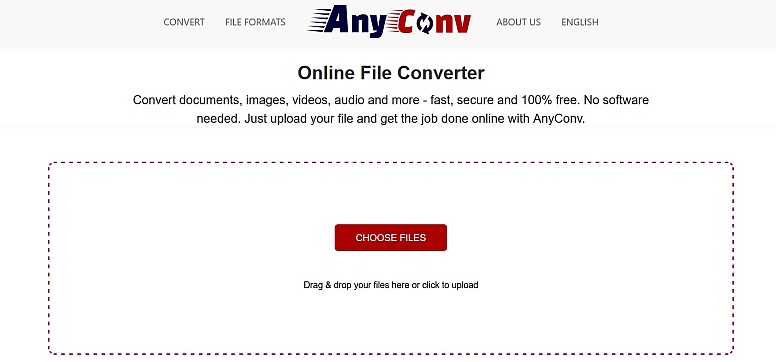
AnyConv is a simple online option. The website is very clean with no distracting ads. It works reliably for common conversions.
Best for: People who need to convert different file types but do not want to visit multiple websites.
Your Next Step with File Conversion
File converters are useful tools. They solve simple but frustrating problems. The best tool depends on your task.
- For a single image or video, use a free online converter like CloudConvert.
- For hundreds of images, use installed software like XnConvert.
- For shrinking home videos, use HandBrake.
- For a PDF to Word, try Smallpdf online.
- For audio files, use Audacity or a simple online tool.
Start with the free options. They are powerful enough for most needs. When you hit their limits—like needing to convert 500 files at once—you can look at their paid plans or more advanced professional software.
Try one today. Find an old AVIF photo from your camera roll or a large video on your computer. Use one of the tools above to convert it. See how easy it is to make your files work for you.
Questions People Ask About File Converters
Is it safe to use free online converters? Generally, yes for well-known sites like CloudConvert or Smallpdf. They process files automatically. To be safe, do not upload private or sensitive documents (like tax papers) to any website unless you trust it. For very private files, use software on your computer like HandBrake or XnConvert.
Why did my file get bigger after converting? This happens often with images. If you convert a JPG (which is compressed) to a PNG (which is not compressed for simple images), the PNG can be larger. Video conversion to a higher quality setting also makes bigger files. Check the output settings in your tool.
Do converters change the quality of my file? It depends on the format. Converting a PNG to a JPG often reduces quality because JPG uses compression. Converting a WAV audio file to an MP3 reduces quality. Converting a document from .docx to .odt should not lose content, just formatting sometimes. Always keep your original file.
What does "batch conversion" mean? It means converting many files at the same time. Instead of converting one picture, you select a whole folder of 50 pictures and convert them all with one click. Software like XnConvert and HandBrake is good for this.
What is the best format for...?
- Website photos: WebP or AVIF (use JPG as a backup).
- Printed photos: JPG or TIFF with high quality.
- Logos with transparency: PNG.
- Videos for YouTube: MP4 with H.264 codec.
- Archiving music: FLAC.
- Music on your phone: MP3 or AAC.
- Documents for sharing: PDF.
- Documents for editing: DOCX (Microsoft Word).
There are also many specialized or single-purpose online converters. While we have already mentioned broad online tools like CloudConvert and Convertio, dedicated sites like these serve a different, often simpler need.
Here’s how they fit into the online landscape and what you should know:
The Role of Specialized Converters
These websites do one thing, or a few very specific things. Their entire purpose is to convert, for example, AVIF to JPG or HEIC to PNG. They are laser-focused on solving a single, common file problem.
Key Characteristics:
- Extremely Simple Interface: The page often has just two buttons: "Upload" and "Convert." There are no dropdown menus with 200 formats. It’s built for one job.
- Fast for That Specific Task: Because they are optimized for one conversion path (like AVIF > JPG), the process can be very streamlined.
- Easy to Find via Search: People often find these through direct Google searches like "convert avif to jpg online free." The site name and URL often contain the keywords (e.g.,
picflow.com/convert/avif-to-jpg), which helps them rank highly for that exact query. - Often Part of a Toolsuite: A site like
picflow.comthis likely has other pages for "WebP to JPG," "HEIC to PNG," etc. It’s a collection of single-task tools under one brand.
How They Compare to the Tools I Mentioned
Let’s put them in a simple table:
| Feature | Specialized Converter (e.g., picflow.com) | Broad Online Converter (e.g., CloudConvert) | Desktop Software (e.g., XnConvert) |
|---|---|---|---|
| Ease of Use | Easiest. No choices to make. | Easy, but requires selecting input/output formats. | More steps to install and learn. |
| Speed for One Task | Very Fast. | Fast. | Fast after installation. |
| Number of Formats | One or a handful. | Hundreds. | Dozens to hundreds. |
| Batch Conversion | Sometimes, but usually no. One file at a time. | Often yes, with limits. | Yes. The best for this. |
| Best For | A user with one immediate, specific problem. "I have this AVIF and need a JPG now." | A user who converts different file types occasionally and wants one tool to remember. | A user who converts many files regularly, needs no internet, or wants advanced control. |
Expert Advice on Using Specialized Converters
- Check for Privacy: Before uploading any sensitive or personal photos, glance at the website's "Privacy Policy" or "Terms of Service." Reputable tools (which most are) will state they delete your files from their servers after a short time (e.g., 1-24 hours). This is standard for online converters.
- Beware of "Watermark" Traps: Some free specialized converters will place a small logo or watermark on your converted image unless you pay or "upgrade." A good, honest free tool will not do this. Always check the download preview if possible. The ones I recommend in the main article do not add watermarks in their free tiers.
- They Solve a Pain Point: The existence of specialised online converters is a direct response to a real-world issue. Apple uses HEIC. New cameras and websites use AVIF. Many older systems and social media sites still only accept JPG/PNG. These tools bridge that compatibility gap perfectly.
- Limitation is a Feature: The fact that they only do AVIF to JPG is what makes them so easy and findable for that task. You don't get lost in options.
Should You Use Them?
Absolutely, if: You have a one-off file, you found the site via a trustworthy search result, and you need a dead-simple solution in under a minute. They are perfect for that.
Consider a broader tool if: You find yourself going to a specialised online converter for AVIF to JPG today, then searching for a different site for PDF to Word tomorrow, and another for MP4 compression the next day. In that case, learning one tool like CloudConvert or OnlineConvert.com will save you time in the long run.
In summary, specialised converters like the one you linked are the "quick fix" of the file conversion world. They are highly effective for their designed purpose, incredibly user-friendly, and a vital part of the ecosystem. They exemplify the principle that the best tool is often the one that does exactly what you need, and nothing more.
LEAVE A COMMENT



0.2071