




How To Design An Email Signature In 2 Minutes
An email signature gives recipients your main contact details at the end of every message. It can include your name, position, company, phone number, website, social links, and logo.
Creating one by hand can take time because HTML email formatting behaves differently across mail clients. An email signature generator gives you a ready layout, editable fields, a visual preview, and HTML that you can copy into your email client.
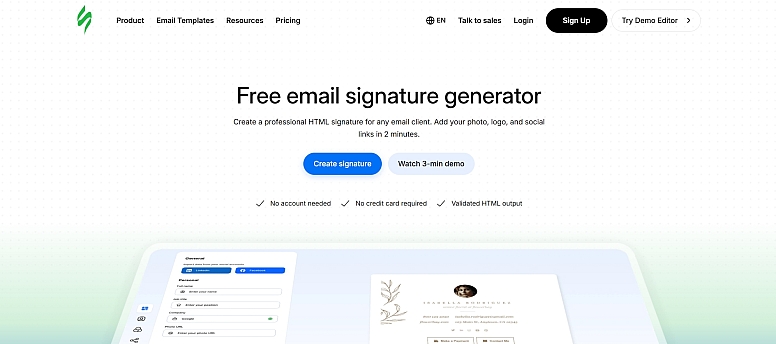
If your contact details and brand assets are ready, you can create a professional signature in about two minutes. Here is how the process works with Stripo's free email signature generator.
What should an email signature include?
A business email signature should help a recipient identify you and contact you quickly.
Most signatures use some of these elements:
- Full name
- Job title
- Company name
- Phone number
- Website
- Email address
- Logo or professional photo
- LinkedIn or other relevant social links
- A short call to action
Choose information that your recipients may need.
For example, a freelance designer may include a name, job title, portfolio link, phone number, and LinkedIn profile. A sales manager may add a meeting-booking link. A company representative may use a logo and corporate website.
Adding every available detail can make the signature hard to scan. Keep only information that supports communication with clients, partners, or colleagues.
How to use an email signature generator
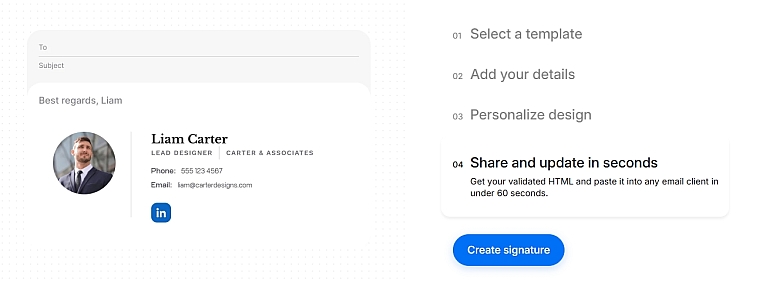
Stripo email signature generator divides the process into four main steps. You choose a template, enter your details, customize the appearance, and copy the finished HTML.
You can use the tool without creating an account or entering credit card details. Also, you don't need coding or design skills.
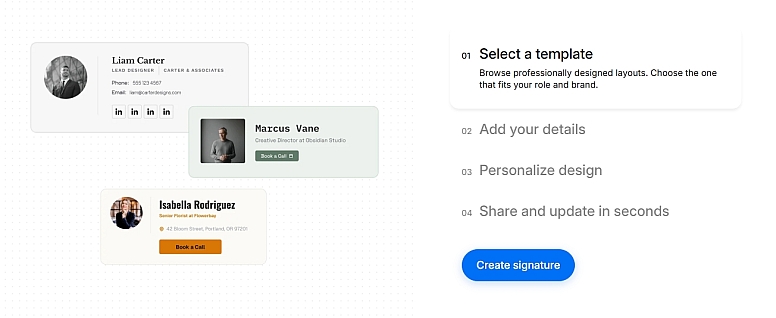
1. Select a template
Start by browsing the available signature templates.
Choose a layout based on the amount of information you want to show. A simple vertical design works well for a name, title, company, and several contact details. A layout with two sections can give more space to a photo or logo.
Your role can also affect the format.
A consultant may choose a compact text-focused signature. A creative professional may use a photo and a stronger brand color. A company employee may need a logo, title, website, and social icons.
Choose a template that already has the structure you need. This reduces editing and keeps the creation process short.
2. Add your details
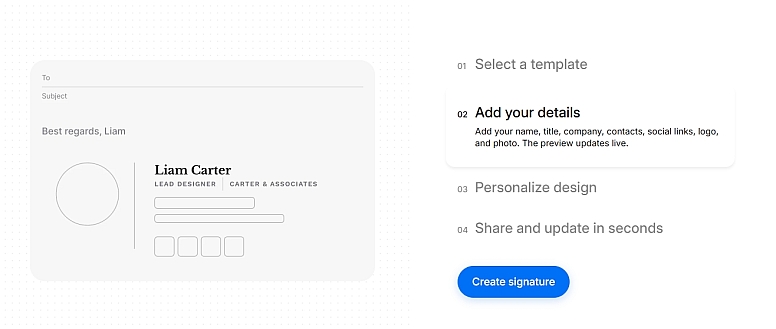
Enter your name, position, company, phone number, website, and other contact information.
You can also add:
- A company logo
- A professional photo
- Social media profiles
- Additional links
The preview changes as you edit the fields, which helps you check the result before copying the signature.
Keep the information concise. Use a direct phone number and link social icons to the exact profiles you want people to visit.
Check the spelling of your name, title, and company. Test every URL as well.
For example, if your LinkedIn profile has changed, make sure the icon opens the current profile. A small mistake can remain in hundreds of emails if you do not check the links before saving the signature.
3. Personalize the design
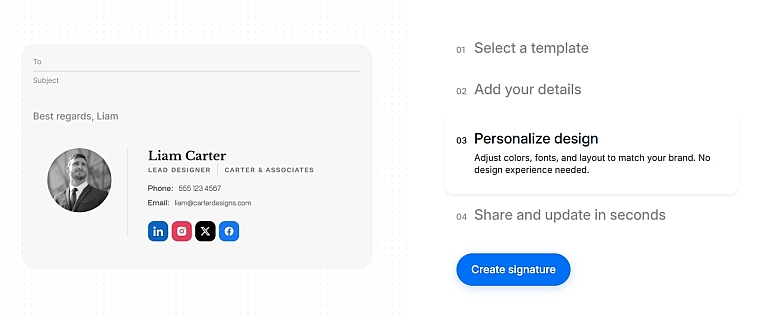
After adding your information, adjust the colors, fonts, and layout.
Use colors that already appear in your company branding. One accent color is often enough for links, icons, or small design elements.
Keep the main text easy to read on a white email background. Dark text works well for names and contact information.
Use one font family where possible. You can create a hierarchy with size and weight. For example, make the name slightly larger or bold, then use regular text for the job title and contact details.
Spacing also affects readability. Leave enough room between the name, company details, and links so recipients can scan each part.
You don't need design software for these changes because the generator provides ready controls.
4. Copy and use your signature
When the design is ready, copy the validated HTML from the generator and add it to your email client.
The process can take under 60 seconds once the signature is complete.
Validated HTML helps preserve the structure when you use the signature in an email client. You don’t need to write the code yourself.
If your job title, phone number, logo, or social profile changes later, return to the generator, update the information, and copy the revised version.
Email signature design best practices
A few simple rules can make an email signature easier to read on desktop and mobile devices.
Create a clear information order
Your name should usually appear first, followed by your role, company, and contact details.
For example:
Anna Morgan
Marketing Manager
Greenfield Studio
+1 212 555 0175
greenfield.example
A recipient can find each detail quickly because the information follows a predictable order.
Use a small color palette
An email signature doesn’t need many colors.
A practical combination includes:
- One dark text color
- One secondary neutral color
- One brand accent
You can use the accent color for links or icons while keeping contact information neutral.
Choose readable fonts
Use fonts that remain easy to read across common devices and mail clients.
Arial, Verdana, Georgia, and Times New Roman are common choices. Custom fonts may display differently if the recipient's device does not support them.
Avoid making contact details too small. A signature that looks compact on a desktop screen may become hard to read on a phone.
Keep images compact
A logo or professional photo can make the sender easier to recognize, but the image should not dominate the message.
Use a clear image with reasonable dimensions. Large image files may slow loading and make short messages feel oversized.
Send yourself a test email and check the image on both desktop and mobile.
Limit social links
Add social profiles that relate to your work.
For many professionals, LinkedIn is enough. A designer may also use Behance. A developer may include GitHub. A photographer may add Instagram.
Several unused social icons add visual noise without giving recipients useful information.
Use one clear call to action
Some signatures include a booking link, portfolio link, case study, or event page.

Keep the call to action specific.
Examples include:
- Book a 20-minute call
- View my portfolio
- Read the latest case study
- Download the event agenda
One focused action keeps the signature compact.
Common email signature mistakes
Even a well-designed template can produce a poor result when it contains too much information.
Adding too many details
Several phone numbers, multiple websites, many social links, and a long address can turn a small signature into a large block.
Remove information that most recipients will not use.
Using weak visual hierarchy
If every line uses the same font size, weight, and color, recipients may need more time to find your name or phone number.
Give the name more emphasis, then keep secondary details simpler.
Using an oversized logo
A logo should support your contact information.
If it takes more space than your name and contact details, reduce its size.
Keeping outdated links
Test your website, social profiles, booking page, and other links before using the signature.
Repeat this check after a rebrand, domain change, job change, or profile update.
Ignoring mobile display
Send a test email to yourself and open it on a phone.
Check:
- Text size
- Line wrapping
- Image dimensions
- Link spacing
- Total signature height
This quick test can reveal formatting problems that do not appear on a wide screen.
How to add an email signature in Gmail
Open Gmail on a computer and go to Settings > See all settings.
Find the Signature section under the General tab. Create a signature and paste your finished content into the editor.
You can also choose which signature Gmail uses for new emails and replies.
Save your settings and send yourself a test message to check the formatting and links.
How to add an email signature in Outlook
In the new Outlook or Outlook on the web, go to Settings > Accounts > Signatures.
Create a signature, give it a name, paste your content, and select when Outlook should add it to messages.
Classic Outlook uses a different menu. Open a new email and choose Signature > Signatures. Create a new signature and add your content.
After saving, send a test email and check the layout.
How to add an email signature in Apple Mail
On a Mac, open Mail and go to Mail > Settings > Signatures.
Choose the email account, create a signature, and paste your finished content into the signature field.
You can also select which signature Apple Mail should use by default.
Send a test email to another address to confirm that the text, images, and links appear correctly.
A simple two-minute workflow
You can make the process faster by preparing your information before opening the generator.
Have these details ready:
- Name
- Job title
- Company
- Phone number
- Website
- Social profile URLs
- Logo or photo
- Brand color
Then select a template, enter the details, adjust the design, check the links, and copy the HTML.
The free generator requires no account, no credit card, no coding, and no design experience. It also provides validated HTML for use in common email clients.
If you also work on email campaigns, Stripo.email provides tools for creating email content alongside its signature generator.
Before using your new signature every day, check your name, title, phone number, links, logo size, and mobile display. One test email can catch small errors before the signature appears in your client and customer conversations.







0.2523