










Why Copy-Paste Fails on Foreign Language Images
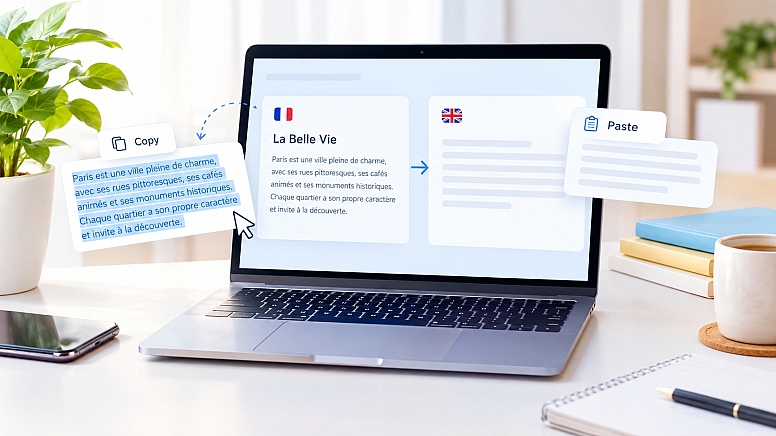
You screenshot a menu, a sign, or a page from a foreign document, and you try the obvious move: highlight the text and hit copy. Nothing happens. No cursor, no selection, no text to grab. It feels like the file is broken, but it isn't. The image just doesn't work the way you assume it does, and understanding why is the first step to actually fixing the problem.
The Real Reason Copy-Paste Doesn't Work on Images
A photo is not text. It is a grid of colored pixels. When you look at a word in an image, your brain recognizes the shape and reads it instantly, but to a computer, that same word is just a pattern of dots with no built-in meaning. There is no character layer sitting behind the pixels the way there is in a Word document or a webpage, which is why your cursor has nothing to select.
This is different from a PDF with selectable text, where the letters were typed digitally and stored as actual characters. A photograph of a sign, a scanned page, or a screenshot of a foreign app has none of that structure. The text exists visually, not digitally, and that distinction is the entire reason copy-paste fails.
What People Try Instead, and Why It Still Falls Short
Once copy-paste fails, most people fall into one of a few habits that don't really solve the problem.
Retyping the text manually. This works for a short sign but becomes unrealistic for a paragraph, especially in a script you don't read, where a single misidentified character changes the entire meaning of a word.
Using a basic translation app's camera mode without checking accuracy. Many camera translators still struggle with dense paragraphs, stylized fonts, or text that wraps around images, producing a rough guess rather than a reliable translation.
Searching for the phrase online, hoping it matches something. This occasionally works for common phrases but fails completely for anything specific, like a legal clause or a menu item unique to a local dish.
None of these actually solve the underlying problem, which is that the text was never machine-readable in the first place.
The Fix Most People Don't Know About
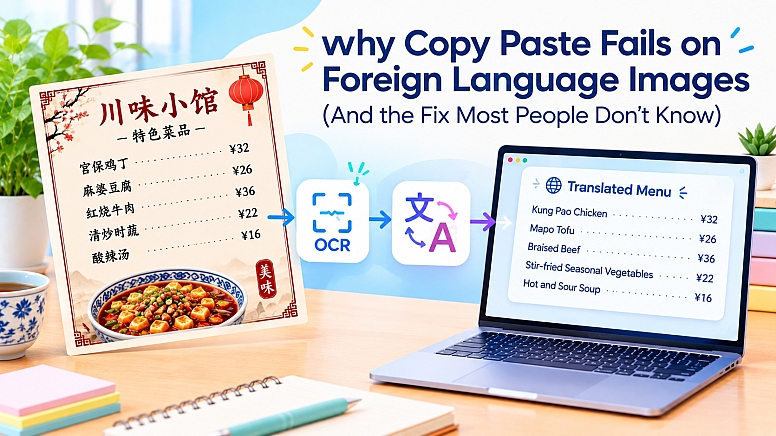
The real solution is a two-step process working together behind a single click. First, optical character recognition, commonly known as OCR, scans the image and converts the visual shapes into actual machine-readable characters. Once that text exists digitally, it can be handed to a translation engine the same way typed text would be.
This combined process is what people are really asking for when they search for ways to translate image content. Instead of trying to copy something that was never copyable, you are converting the image into text first and only then translating it. This is the fix that most people never learn, because it feels like it should be one step when it's actually two working in sequence.
Modern tools built around this idea let you skip the manual work entirely. Upload the photo, and the platform will translate photo content by extracting the text with OCR and running it through a translation model in one pass, with the output shown either as plain translated text or overlaid back onto the original image layout.
How to Translate a Picture Correctly, Step by Step
Capture a clear, well-lit photo. OCR accuracy depends heavily on image quality, so avoid harsh glare, extreme angles, and heavy blur before anything else.
Use a tool built for image-based text, not a plain text translator. A standard translator box expects typed input, so pasting a description of the image won't help. You need a tool designed specifically to translate a picture directly from the file itself.
Check the output against the layout. A good image translator preserves structure, so headers stay headers and lists stay lists, which makes it far easier to spot a translation that looks technically correct but reads oddly out of context.
Re-check anything with specific terminology. Menu items, medical instructions, and legal language often need a second look, since automated translation handles general text well but can still miss nuance in specialized wording.
Everyday tools built around this exact workflow, such as Photo Translator, follow this same logic: extract first, translate second, and keep the original structure visible so you can compare it against the translated result rather than reading a flattened block of text.
Why This Matters Beyond Personal Use
This isn't just a travel problem. Businesses running multilingual websites deal with a version of the same issue constantly, whether it's translating product images, scanned supplier documents, or region-specific marketing materials that were never built as editable text in the first place.
If you're building or restructuring a site that needs to serve multiple languages, the technical side of localization goes well beyond translating individual images. WebYurt's guide on structuring e-commerce websites for multiple languages covers the broader groundwork, including URL structure and regional SEO, that determines whether translated content actually performs once it's live.
What a Reliable Image Translator Should Actually Do
- Recognize text accurately across different fonts and scripts, not just clean printed Latin characters.
- Translate with context, reading nearby lines together instead of isolating each phrase.
- Preserve the original layout so the translated version stays easy to compare against the source.
- Process quickly without demanding an account, since most image translation needs happen in the moment.
- Handle common formats like screenshots, scanned pages, and photos taken at an angle, not just perfectly flat, high-resolution images.
Frequently Asked Questions
Why can't I select text in a photo the way I can in a PDF?
A photo stores text as pixels with no character data behind it, while a proper PDF or webpage stores the actual characters, which is what makes text selectable.
What's the actual fix for translating text in an image?
Run the image through OCR first to convert the pixels into real text, then translate that text. This two-step process is what a dedicated image translator does automatically.
Does taking a screenshot make text copyable?
No. A screenshot is still an image, so it has the same lack of a character layer as any other photo, and copy-paste will not work on it.
Is OCR accurate for handwritten foreign text?
It's improving steadily but still less reliable than printed text, since handwriting styles vary far more than standardized fonts.
Can I translate a picture without uploading it to a random website?
Yes, if you choose a tool that clearly states it processes and then discards the image rather than storing it, which is worth checking before uploading anything sensitive.
Copy-paste fails on images because the text was never there to begin with, only its visual shape. The fix isn't a workaround; it's a different process entirely: read the pixels first, then translate the result.
Once you understand that distinction, choosing the right tool becomes a lot easier, because you're no longer looking for a translator; you're looking for something that can actually see the text before it translates it.







0.3479