



Best JPG Merger Tools to Combine Multiple Images Into One
When I need to combine several JPG images into one file, I usually don’t want to open a full photo editor or install another application. I just want to upload the images, put them in the right order, choose a layout, and download the finished JPG.
I tested several online JPG merger tools to see how they compare in terms of ease of use, image quality, supported features, processing speed, and overall experience. Some tools are better for quick, simple merges, while others offer more control over layouts and output. Here are the JPG merger tools I found most useful for combining multiple images into one.
Best JPG Merger Tools to Combine Multiple Images
If you need to combine several JPG images into one file, an online JPG merger can make the process much quicker than using traditional photo-editing software. I tested several popular tools to compare their ease of use, image quality, layout options, processing speed, and overall experience. Below are the JPG merger tools that stood out to me for different types of image-merging needs.
MergeJPG.pro
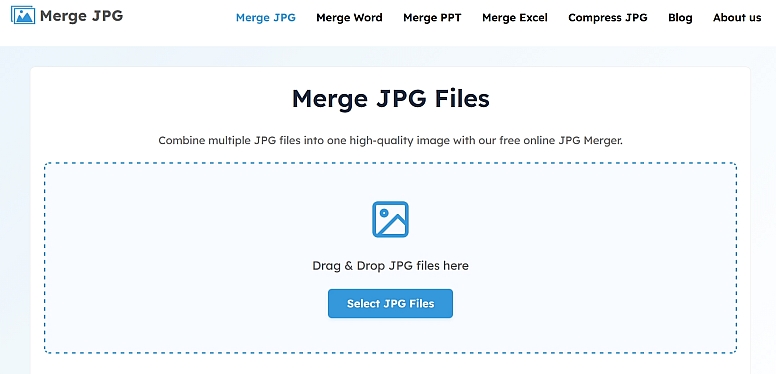
If you want the simplest and easiest way to merge multiple JPG images into one file, MergeJPG.pro is one of the best options I found. It works completely in your browser, its meand your images are not uploaded to any server. Its clean, user-friendly interface keeps everything simple. Just upload your images, choose a layout, i.e, horizontally (side by side) or vertically (top to bottom), and merge them with just a single click.
I found it especially useful for combining the front and back of an ID card, passport pages, scanned documents, receipts, and screenshots into one file. This makes important documents easier to organize, share, or submit when multiple images are needed in a single attachment.
Another feature I liked is the flexibility in output formats. Once your images are merged, you can download the final file as JPG, PNG, WebP, or PDF, according to your needs. The tool also works across desktop computers, laptops, tablets, and smartphones, so you can merge images on any device.
Best for: Merging multiple images, especially ID cards, passport pages, scanned documents, receipts, and screenshots, into a single high-quality file.
MergeJPG.com
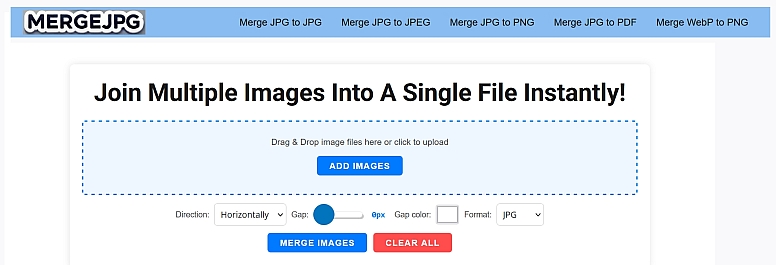
MergeJPG.com is another tool I tested when looking for an easy way to merge multiple JPG images into one. The tool keeps the merging process simple while still giving you a few useful customization options. You can upload your images, drag them into the right order, and choose whether you want them horizontally or vertically. It also supports batch uploads, so you can add several images at once instead of processing them individually.
What I liked most was the extra control over the final layout. You can adjust the gap between images and the gap color. I found these options particularly helpful for combining the front and back of an ID card, passport pages, scanned documents, receipts, and screenshots into one image.
Another plus is its flexible output options. The tool lets you choose from multiple formats, including JPG, JPEG, PNG, WebP, and PDF, so you can save the merged file in the format that best suits your needs.
Best for: Users who want a JPG merger with extra control over image spacing, borders, and layout, especially for combining documents and multiple images into one file.
JPG-Merge.com
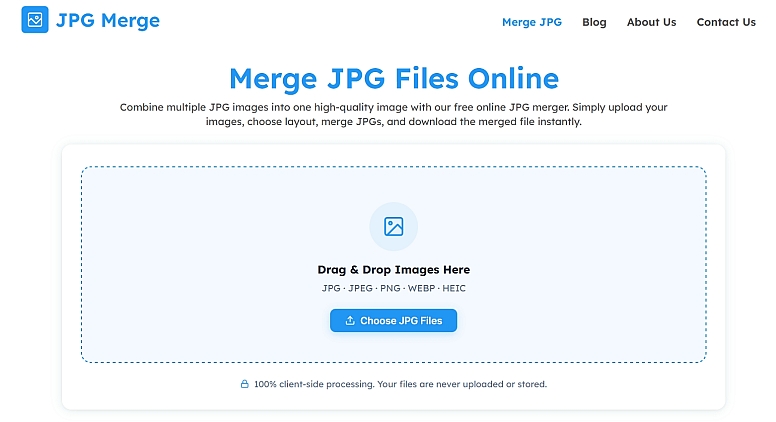
JPG Merge is the best tool I tested for merging multiple JPG files into one image, and I found it particularly helpful for JPG merging. The process is simple: upload multiple JPG images, arrange them in the order you want, choose a horizontal or vertical layout, and merge them into a single file. It allows you to download the merged file in different formats like JPG, PNG, WebP, and PDF.
What I liked most is that it offers more than just basic JPG merging. Along with choosing the image direction, you can customize the merged result with options such as image quality, image spacing, and border color. This gives you more control over how the final image looks, especially when combining scanned documents, ID cards, passport pages, receipts, screenshots, or product photos.
This JPG merger tool preserves the original quality of your imagesur images while combining them, and it supports all image formats including JPG, JPEG, PNG, WebP, HEIC, AVIF, etc. The tool also uses browser-based processing, so your images are processed directly on your device rather than being uploaded to any server. It works on desktop, laptop, tablet, and mobile, so you can use it without installing any software.
Best for: Users who want a fast, free, and simple JPG merger for combining multiple photos, documents, screenshots, and other images while maintaining image quality.
Merge JPG Tool by Smallpdf
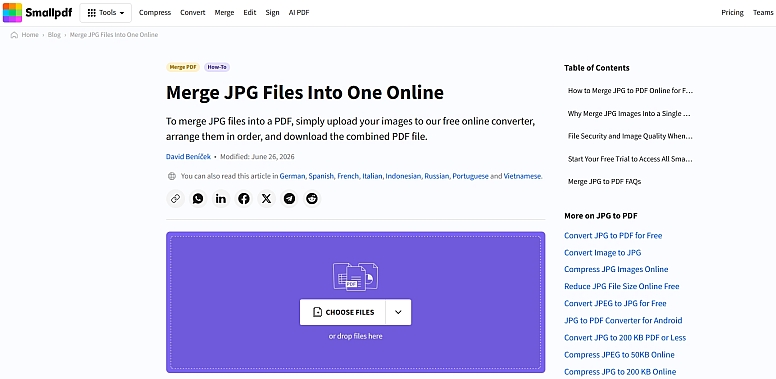
Smallpdf is a good option if your goal is to combine multiple JPG images into a single PDF. I found the process simple: upload your images, rearrange them in the correct order, customize the document settings, and convert them into one PDF file.
What stood out to me was the control available before conversion. You can adjust the page size, margins, and orientation, and you can also delete or zoom images. Smallpdf supports other image formats too, including PNG, GIF, HEIC, WebP, TIFF, and BMP, so you can combine different image types in the same PDF.
Another useful feature is its integration with Google Drive, Dropbox, and OneDrive, which makes importing and saving files more convenient. The tool also works on iOS and Android devices through a browser, with mobile apps available as well.
Smallpdf also states that files are protected with TLS encryption and automatically deleted from its servers after one hour. The free version allows you to merge up to 20 JPG images into one PDF per day.
Best for: Users who want to merge JPG images into a PDF with customizable document settings, multiple image-format support, and cloud storage integration.
How to Merge Multiple JPG Images Into One
After testing different JPG merger tools, I found that combining images is a simple process. You can merge multiple JPG files in just a few quick steps.
- Upload Your JPG Images: Open a JPG merger and upload the images you want to combine. You can usually select multiple files or drag and drop them into the tool.
- Arrange the Images: Reorder your images by dragging them into the sequence you want. This is especially important for scanned documents and multi-page files.
- Choose a Layout: Select how you want your images arranged. Choose horizontal to place them side by side or vertical to stack them from top to bottom.
- Merge the JPG Files: Click the Merge JPG button to combine your selected images into one file. The process usually takes only a few seconds.
- Preview and Download: Check the merged image to make sure everything looks right, then download the final JPG to your device.
After testing these JPG merger tools, I found that the best choice depends on what you need from the tool. If you want a simple way to merge multiple JPG images, dedicated tools like MergeJPG.pro, JPG-Merge.com, and MergeJPG.com offer an easy workflow with useful layout and customization options. If your main goal is to combine images into a single PDF, Smallpdf is a better fit.
For everyday tasks such as combining ID card fronts and backs, passport pages, scanned documents, receipts, screenshots, or product images, an online JPG merger can save you time compared with using complex photo-editing software.
Before choosing a tool, consider the features that matter most to you, such as image quality, layout options, output formats, file limits, customization, privacy, and device compatibility. Once you find the right tool, merging multiple JPG files is as simple as uploading, arranging, choosing a layout, and downloading your finished file.







0.2518